




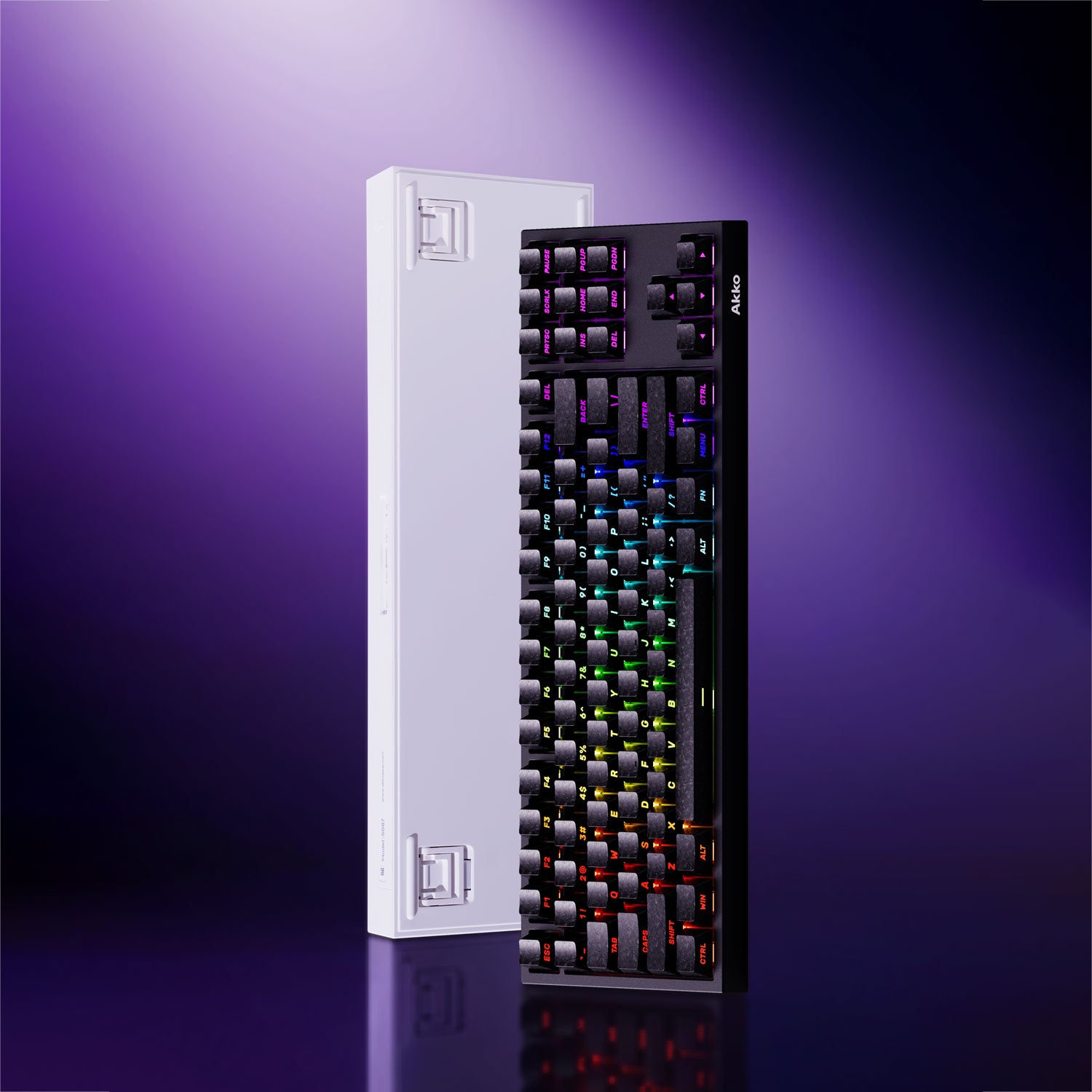
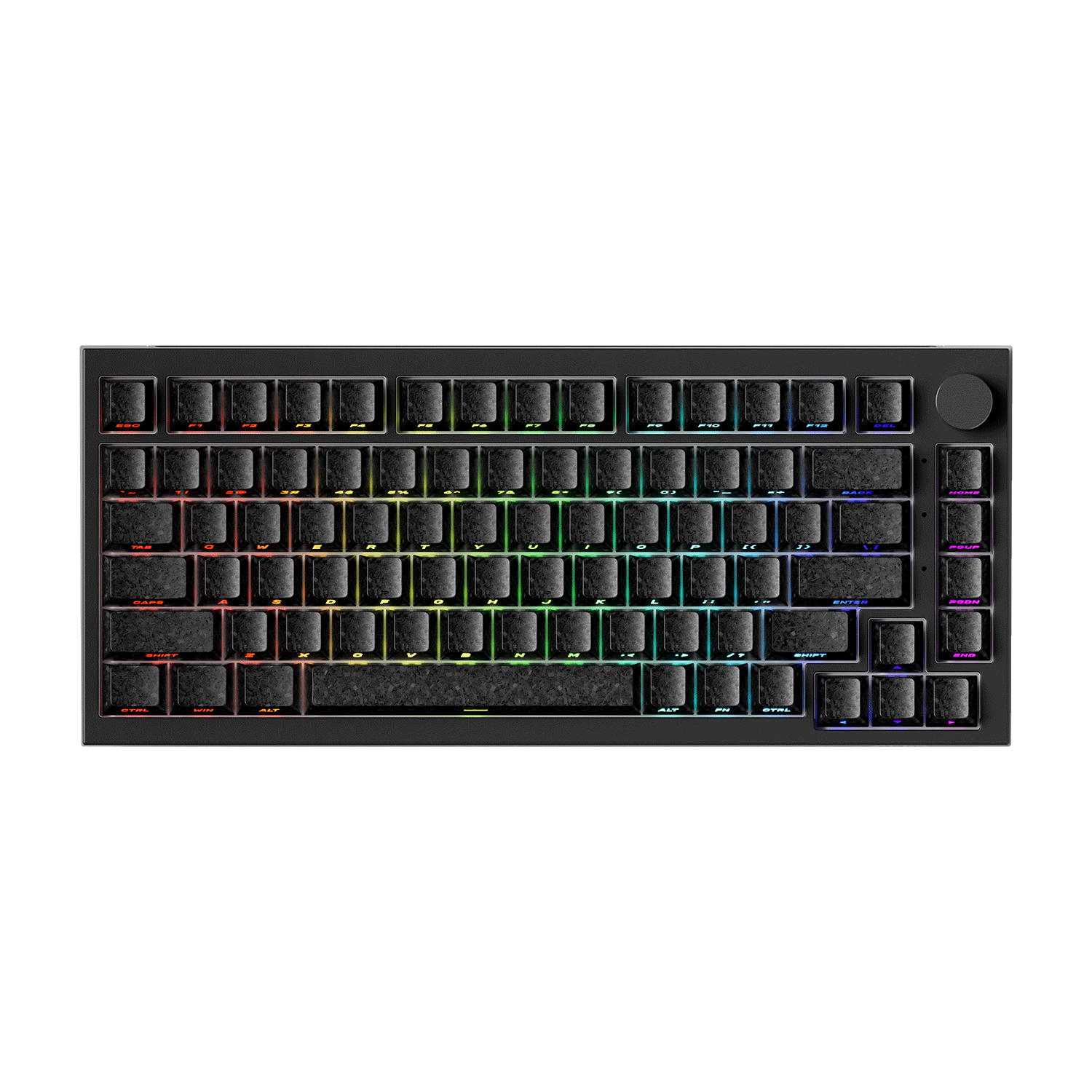
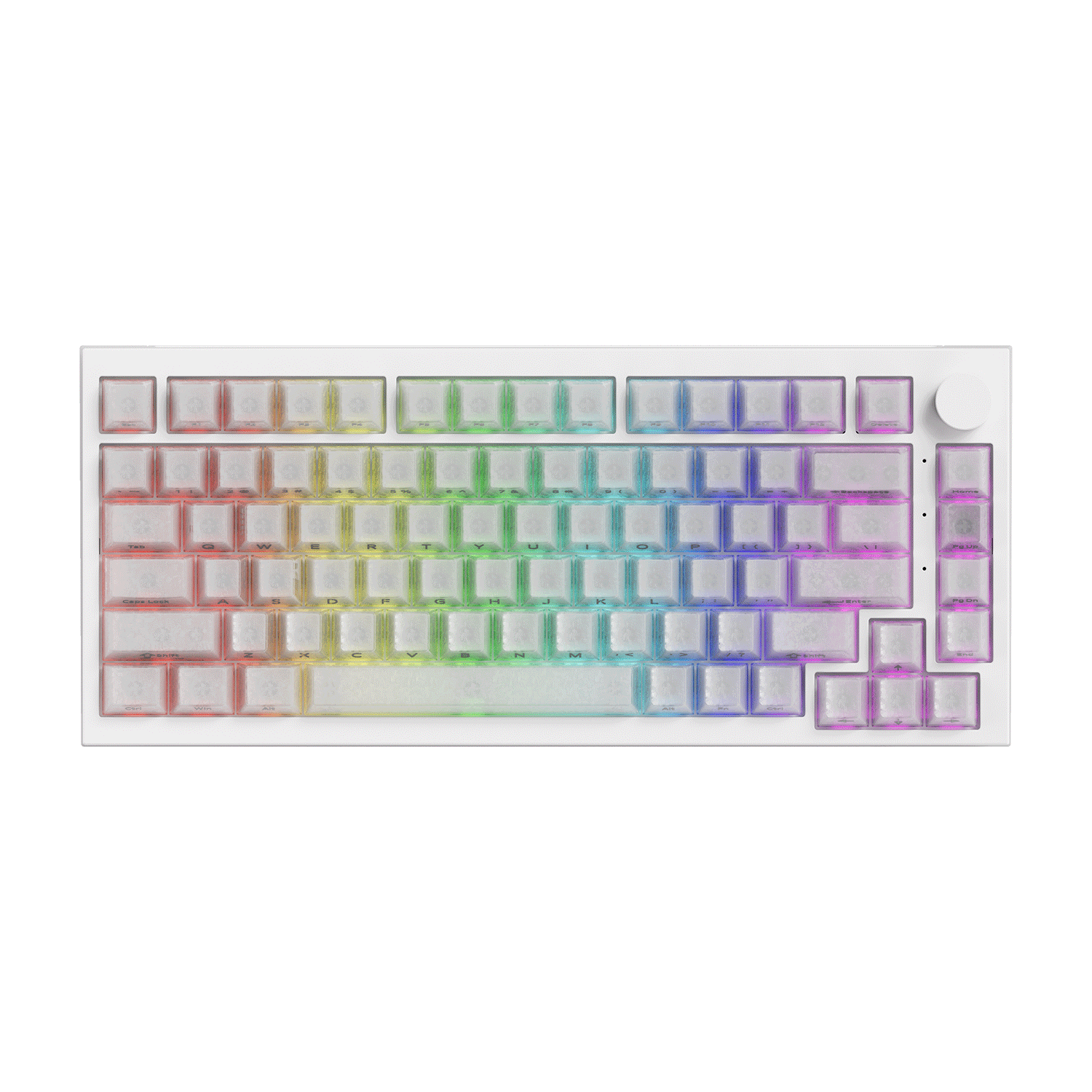
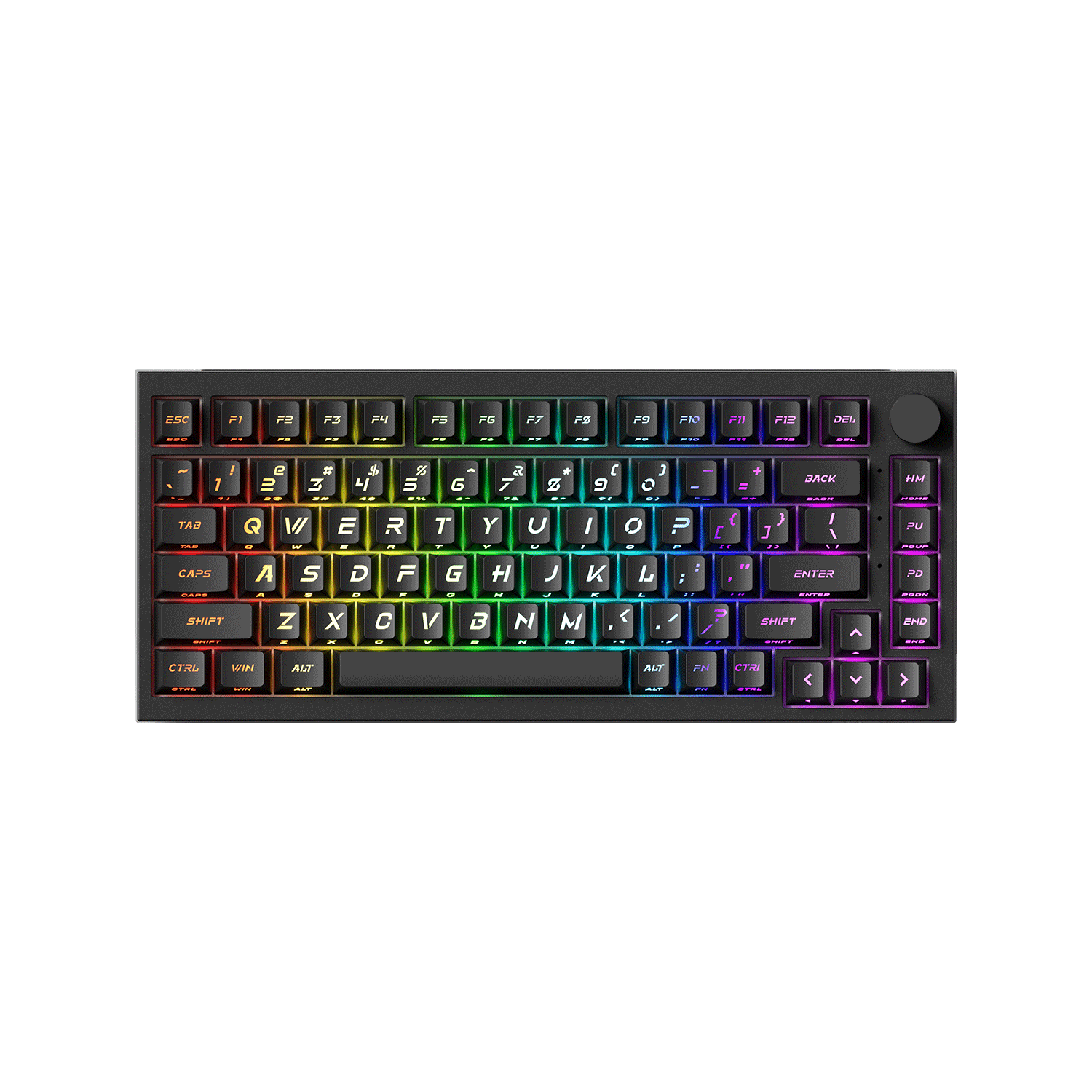
You can download the Akko 3098B Manual from our Download Center.
3098B Technical Specifications

3098B HotKeys

3098B System Commands (Windows)

3098B System Commands (Mac)

3098B Backlight Settings

3098B Bluetooth Feature Overview

3098B Bluetooth Setup Instruction
1. Switch to Bluetooth mode
- When the keyboard remains unplugged, users can push the switch on the back to the left/right to enter Windows/Mac mode correspondingly. Then long press and hold Fn + E/R/T to start pairing with Bluetooth devices. The keyboard will enter Bluetooth pairing mode when the blue LEDs under E/R/T keys flash quickly.
- When the Keyboard is plugged into the computer through USB interface, it will enter Bluetooth mode automatically without having to push the switch on the back. Users can directly long press and hold Fn + E/R/T to enable Bluetooth pairing. The keyboard will enter Bluetooth pairing mode when the blue LEDs under E/R/T keys flash quickly.
2. Set the Bluetooth profile
To help user recognize individual Bluetooth device, the keyboard is equipped with both Bluetooth 5.0 and 3.0 frameworks. The device name under the Bluetooth 5.0 framework is Akko 3098BT-1/Akko 3098BT-2/Akko 3098BT-3 while the device name under Bluetooth 3.0 is AKKO 3098 BT3.0. Once the devices are paired through Fn + E/R/T, the system will by default memorize the last connected device before you turn off the Bluetooth mode.
3. Bluetooth Pairing
The keyboard can be paired with PC, Pad, smartphone and other devices with Bluetooth turned on. When you first try to search Bluetooth devices, two groups of device names shall appear with Akko 3098 BT3.0 (Bluetooth 3.0) and Akko 3098-1 (Bluetooth 5.0). Select a Bluetooth group based on your preferences (Note: some devices can only search for the Bluetooth 5.0 group).
4. Switch the Bluetooth device
After 4 Bluetooth devices have been paired with the keyboard, press Fn+E/Fn+R/Fn+T/Fn+Y for at least 3 seconds to quickly switch between them.
5. Shut off the keyboard
Turn the power off on the keyboard back panel while unused for power saving;
If the keyboard remains unused for over 10 mins, it would go to sleep mode and you can activate it by pressing any key.
Note: The battery saver mode for Windows system would affect/delay the sleep activation time of the keyboard.
6. Reset the keyboard
If you forgot the specific paired front-end device or if there remains disorder in Bluetooth connection and communication, you'll need to clear the computer's Bluetooth cache by removing the 3098 keyboard from the list of connected device.
Key/Lighting Effects Customization Instruction
1. The key/lighting effects customization must be completed in wired mode with Akko driver.
2. In wired mode, the lighting effects can also achieve music rhythm effects with Akko driver.
3. Please download the Akko Cloud driver on our website.
4. Users can download the driver via en.akkogear.com
Akko Warranty and Service Statement
1. Akko provides a 1-year warranty for customers in mainland China. For other regions, please contact your seller (Akko distributor) for specific warranty policy.
2. If the warranty window expires, customers need to pay for repairs. Akko will also provide instructions if users prefer to repair the keyboard by themselves. However, users shall take full responsibility for any loss that happens during self-repair.
3. Disassembling the keyboard without the manufacturer/seller’s instruction will immediately void the warranty.
4. The return and warranty policy may vary on different platforms and is subject to the specific distributor at the time of purchase.





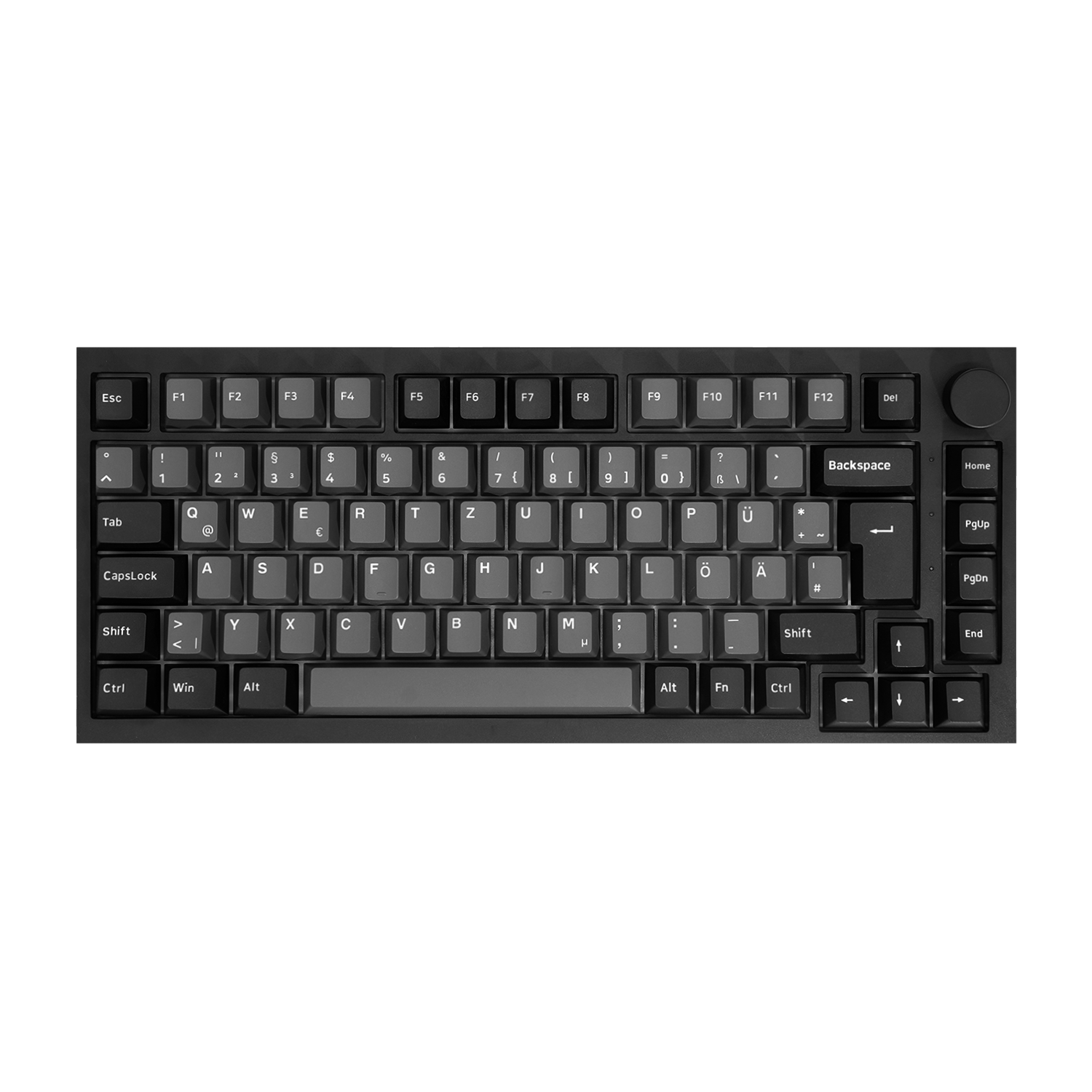
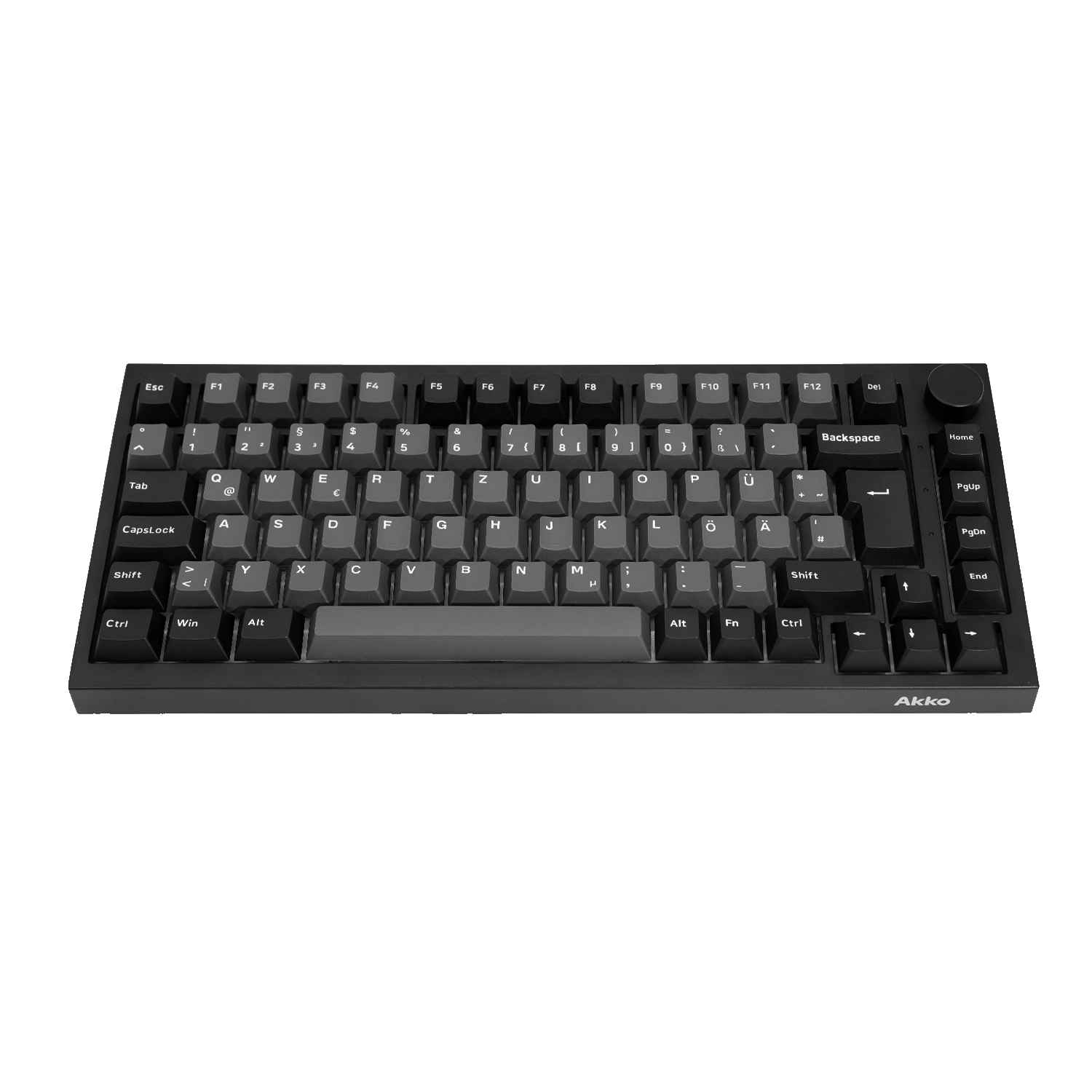
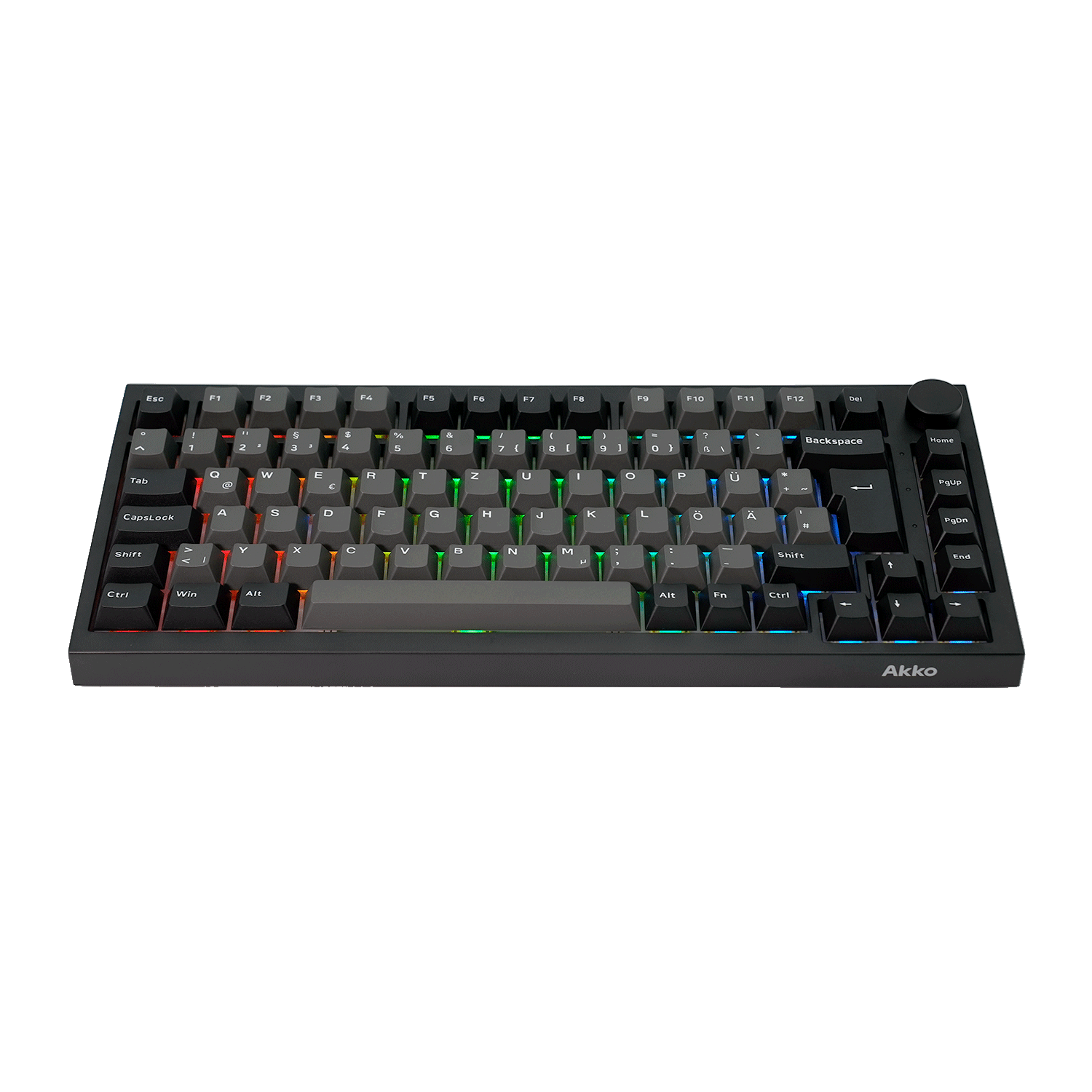
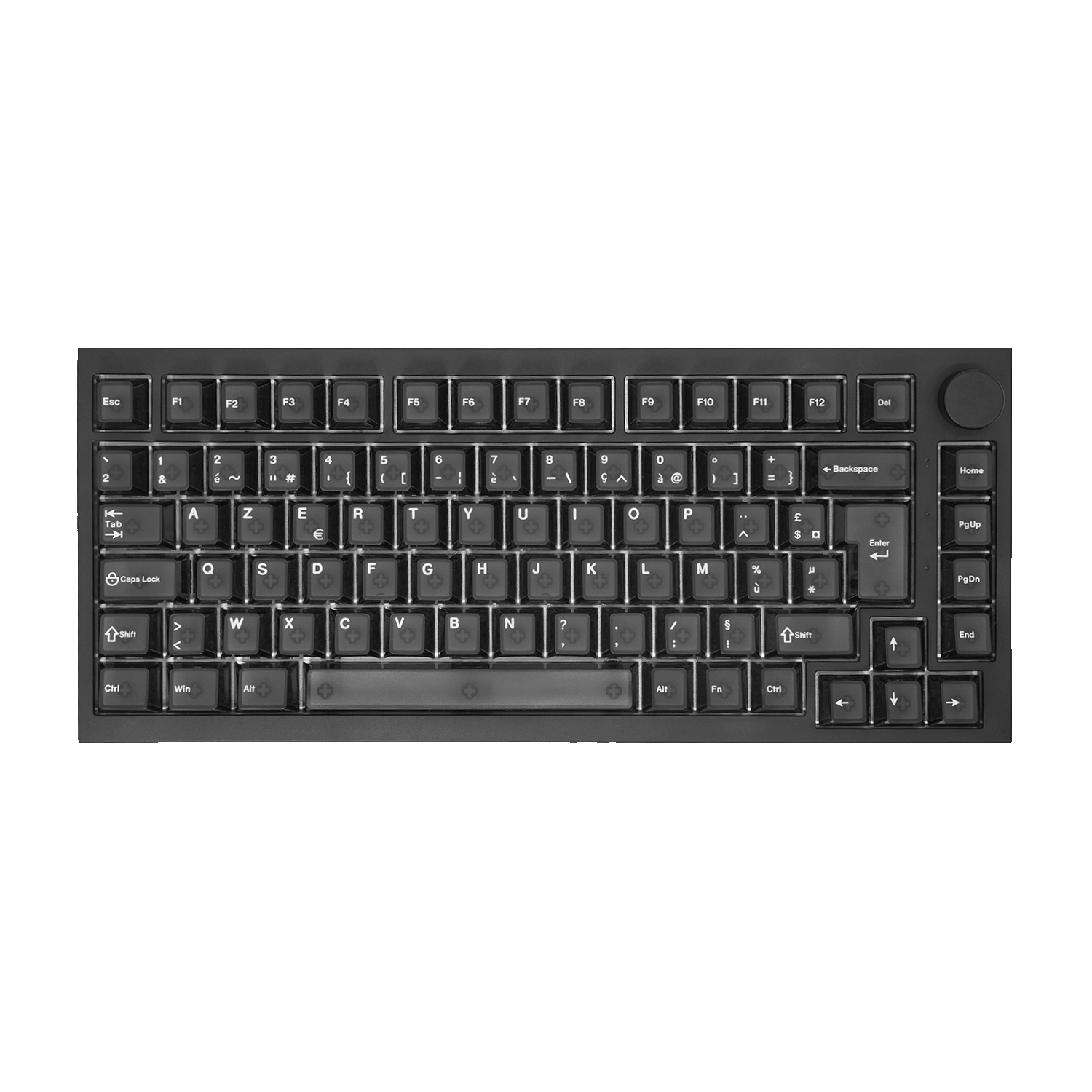


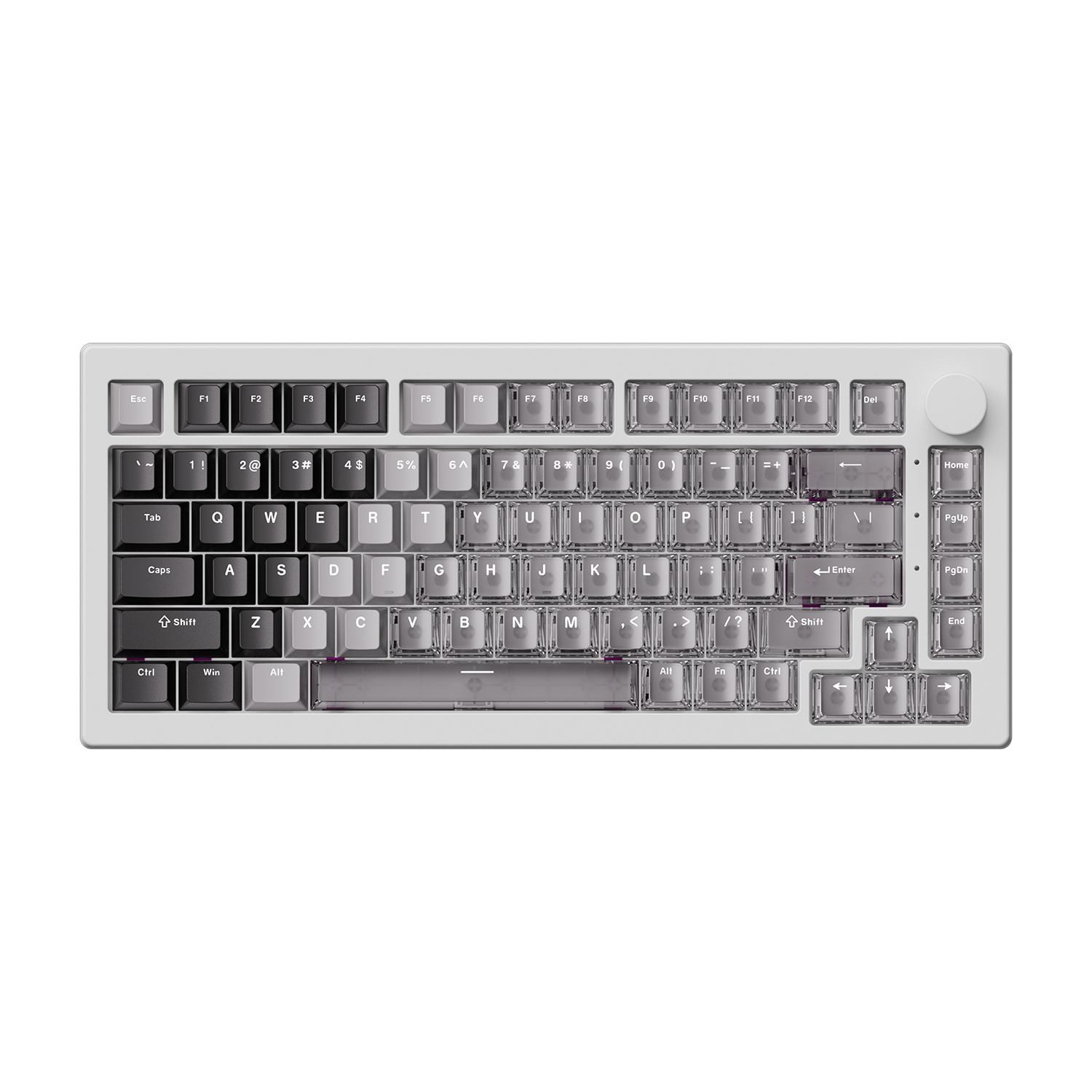
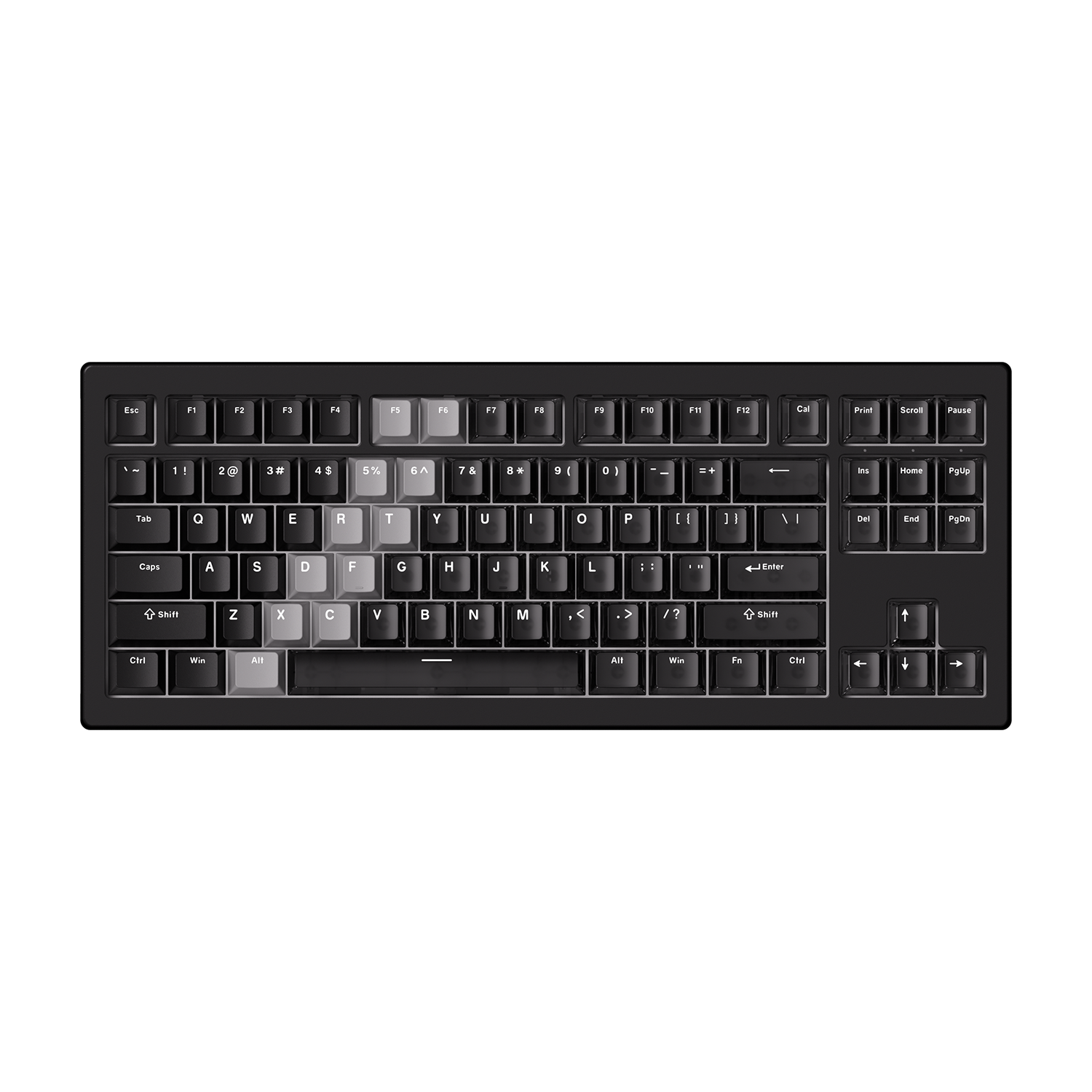
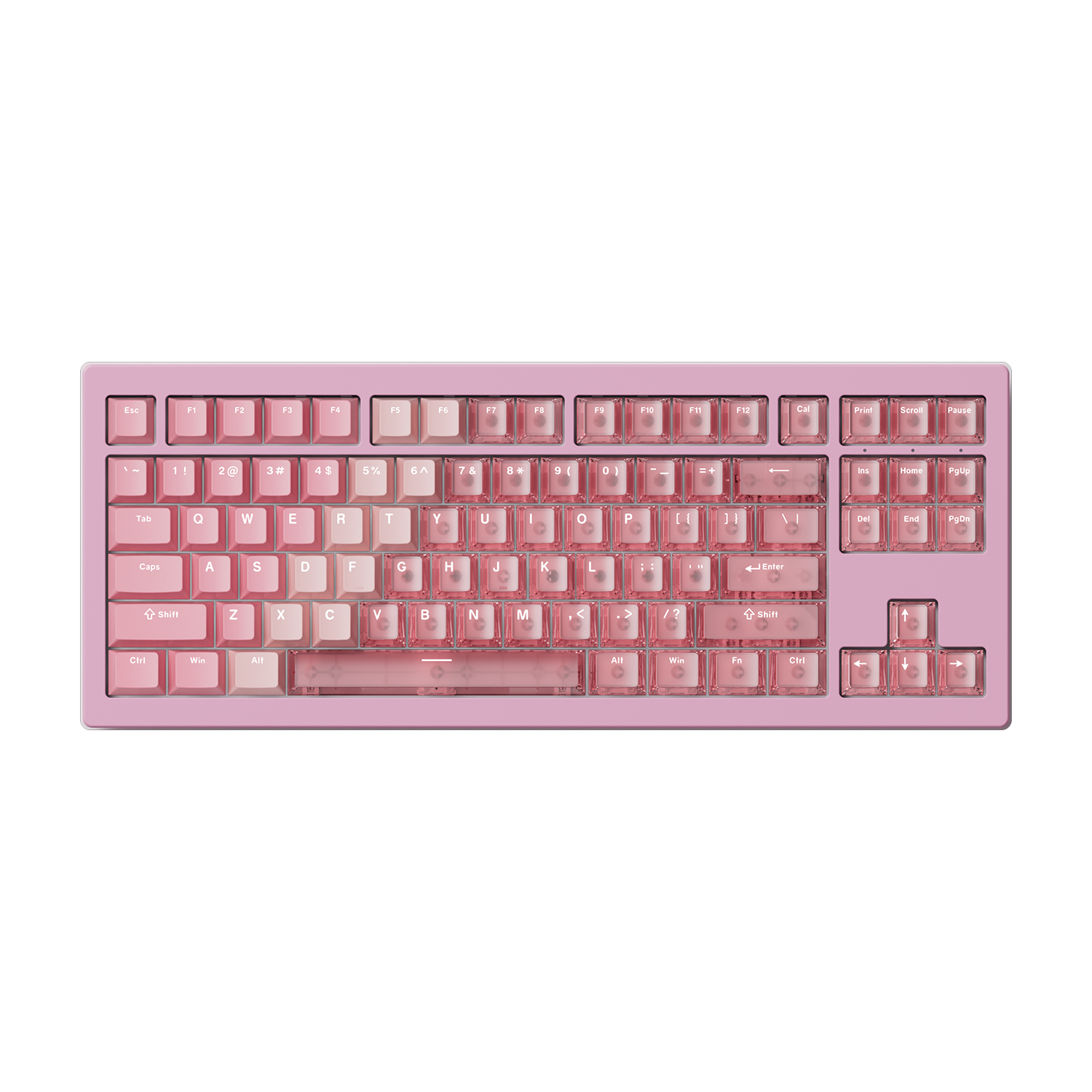


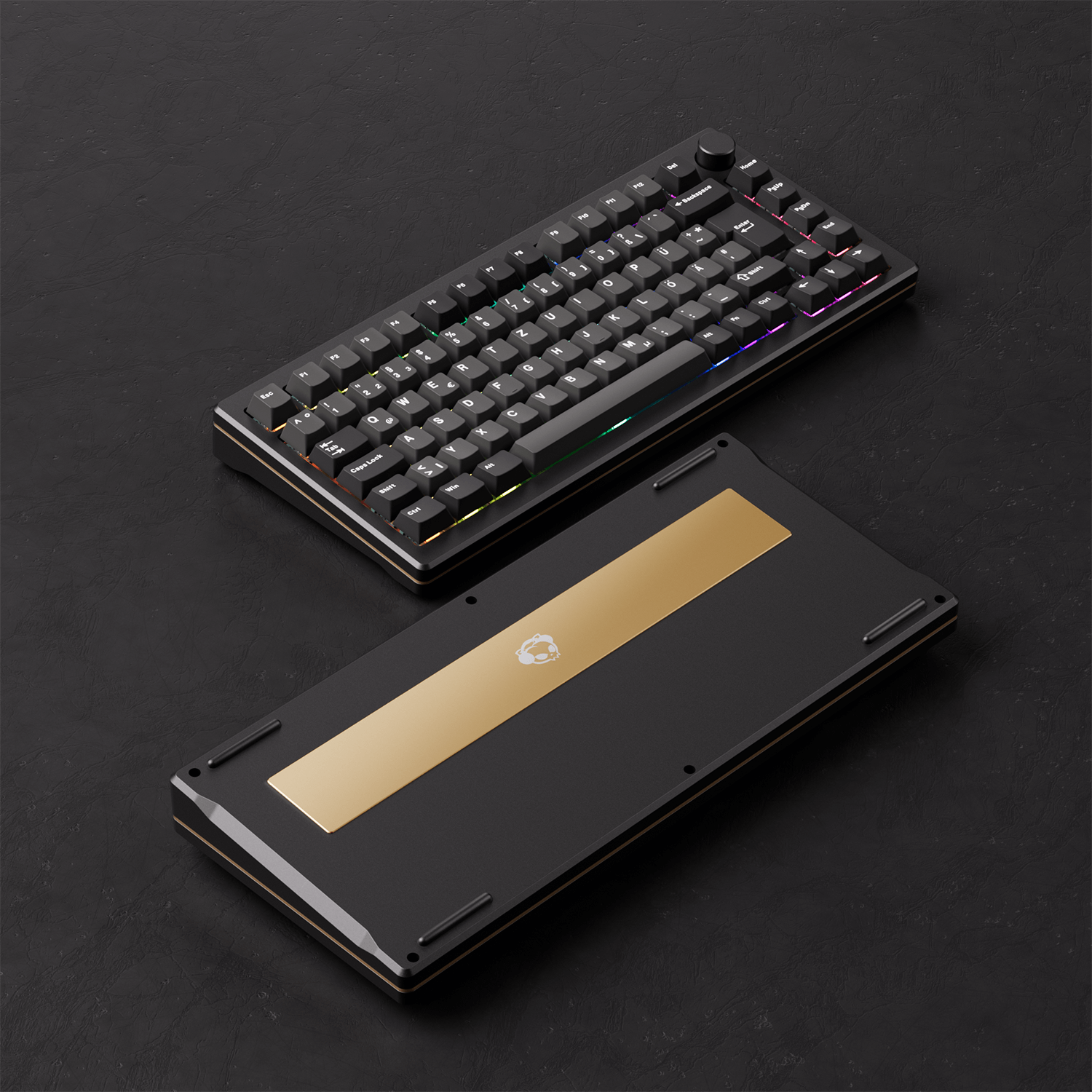



2 comentarios
Rafael Hilario
i can connect with bluetooth mac
ICHIHARA
電源offスイッチが見当たりません。
充電がいつも出来ていません。
どのように対応したらよろしいですか?
Dejar un comentario
Todos los comentarios se revisan antes de su publicación.
Este sitio está protegido por hCaptcha y se aplican la Política de privacidad de hCaptcha y los Términos del servicio.