







If you've tested your mechanical keyboard’s polling rate and found it lower than advertised—don’t worry, you're not alone. The discrepancy usually doesn’t mean your keyboard is faulty. Several software, hardware, and system-related factors can affect the results.
Below, we’ll explain why this happens and how to properly test your keyboard’s polling rate using tools like Keyboard-Inspector.
How Polling Rate Testing Works
Polling rate refers to how often your keyboard sends data (keystrokes) to your computer, measured in Hz. A higher rate (e.g., 1000Hz or 8000Hz) means lower input delay and faster response.
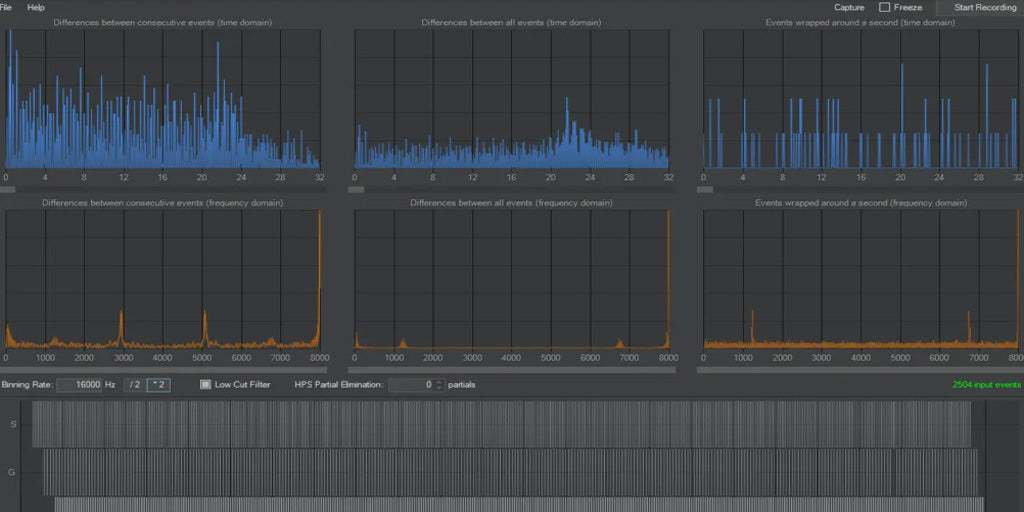
Keyboard-Inspector is one of the most reliable tools for polling rate measurement. It works by listening to USB HID input events from your keyboard and calculating the time intervals between each report. If the tool detects a slower report rate, it reflects the actual performance experienced by your system—not necessarily the keyboard’s full capabilities.
Why the Measured Polling Rate May Be Lower
Here are the most common reasons your polling rate test might fall short of the official specs:
1. Windows Power Plan Settings
Some power-saving modes—like the default “Balanced” plan—can limit USB polling behavior. Switching to “Ultimate Performance” mode in Windows often allows the system to unlock full polling potential.
2. Normal Mode vs. Safe Mode
In certain cases, especially with ultra-high polling rates like 8000Hz, the keyboard performs as expected only in Safe Mode. This suggests something in your regular environment (background apps, drivers, OS-level constraints) is interfering.
3. Driver or Firmware Configuration
Some keyboards require enabling high polling rates manually through a driver or companion software. Make sure your keyboard is in the correct mode (e.g., “Gaming Mode” or “High-Speed Mode”) and updated to the latest firmware.
Tips for Accurate Polling Rate Testing
To ensure your results are as accurate as possible:
- Close unnecessary background applications that may interfere with USB events.
- Temporarily disable antivirus software, which can delay input event processing.
- Avoid USB hubs—plug your keyboard directly into your PC’s USB port.
- Switch to the “Ultimate Performance” power plan in Windows.
- Test in Safe Mode if you're trying to isolate software interference or verify peak hardware capability.
Related Article:


Dejar un comentario
Todos los comentarios se revisan antes de su publicación.
Este sitio está protegido por hCaptcha y se aplican la Política de privacidad de hCaptcha y los Términos del servicio.