










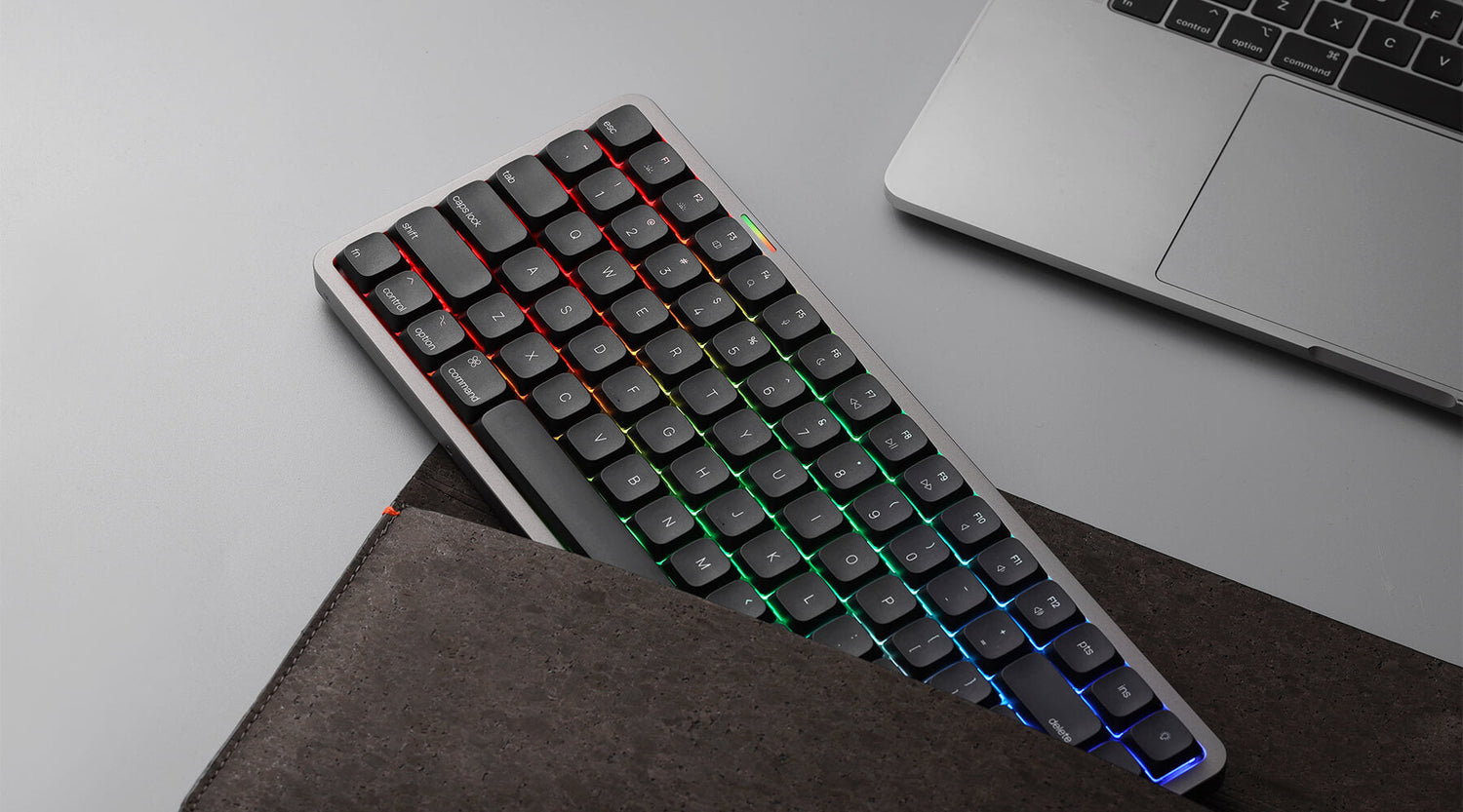
Not all keyboards are created equal, and just like the different keyboard layouts we covered earlier, today we're going to dive into the main differences between Mac keyboards and Windows keyboards.
Whether you're a Mac user planning to buy a mechanical keyboard or you're interested in Apple's Magic Keyboard, this guide will help you make an informed decision.
Key Differences Between Mac and Windows Keyboards
1. Function Key Layout
- Mac keyboards have a different layout for function keys (F1-F12) and special keys like the "Command" and "Option" keys.
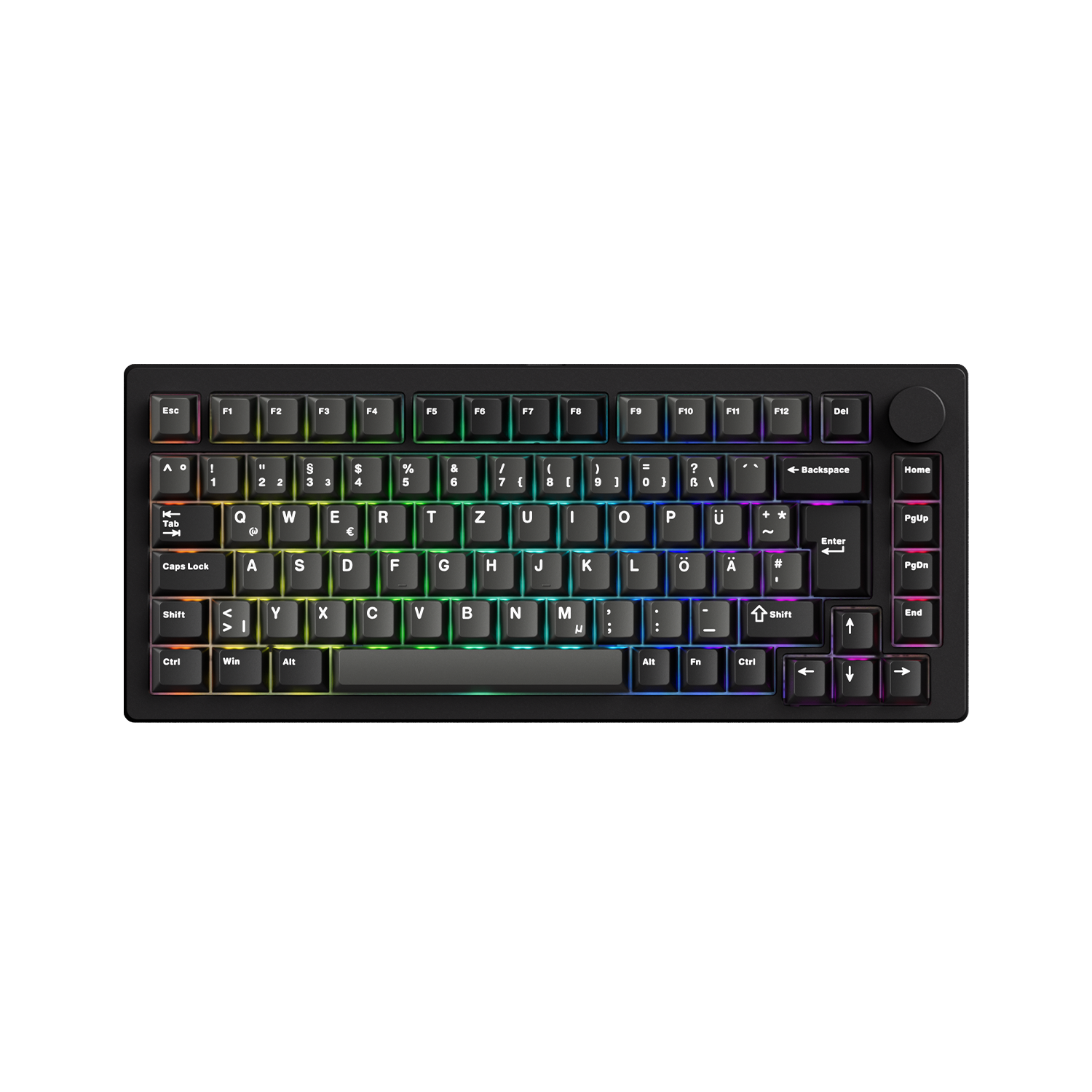
- Windows keyboards include a "Windows" key, which is not present on Mac keyboards.
2. "Alt" Key Naming and Placement
- On a Mac keyboard, the "Alt" key is called the "Option" key and is placed next to the "Ctrl" key.
- On a Windows keyboard, the "Alt" key is located next to the spacebar.
3. Function Key Differences
- On Mac keyboards, volume and brightness controls are integrated into the F1-F12 keys.
- On Windows keyboards, volume and brightness controls are usually on separate keys.
4. Command Keys and Shortcuts
- On Mac Keyboard, the Command (⌘) key serves a similar function to Ctrl on Windows keyboards, handling shortcuts like Command + C (copy) and Command + V (paste). The Option (⌥) key also plays an important role, enabling special functions when used with other keys, such as Option + Shift + 2 to type the @ symbol.
- On Windows keyboards, common shortcuts include Ctrl + C (copy), Ctrl + V (paste), and Ctrl + X (cut). The Windows key can be combined with other keys for quick actions, such as Windows + L (lock the computer) and Windows + D (show desktop).
5. Special Keys
On Mac Keyboards, in addition to Backspace (labeled as Delete on Mac keyboards) and Delete, Mac keyboards may include special keys such as the Eject key and Power key.

Comparison Chart: Mac Keyboard vs. Windows Keyboard
Here is the chart for the comparison of the Mac and Windows key:
| Mac Key | Window Key |
| Option | Alt |
| Command | Ctrl |
| Command | Windows Key |
| Back Space | Delete |
| Command + Up Arrow key | Page Up |
| Command + Down Arrow key | Page Down |
| Command + Left Arrow key | Home |
| Command + Right Arrow key | End |
| F14 | Scroll Lock |
| Command + Shift + 3 | Print Screen |
| Command + Shift + 4 | Selection Print Screen |
Here is the chart for the comparison of the Mac and Windows general operations:
For the General
| Function | Mac OS | Windows |
| Close dialog without any Q action | Esc | Esc |
| Contextual Menus | Control + Click | Right Click |
| Copy a file | Option + drag icon | Control + drag icon |
| Create an alias/shortcut | Command + M | Right Click and choose create shortcut |
| Create an alias/shortcut in a specific location | Command + Option and drag | Alt + drag |
| Item's Info or Properties | Command + I | Alt + Enter |
| Move Q a file | Drag icon to location | Shift + drag icon |
| Select additional items without deselecting previously selected items | Shift + Click on items | Control + Click on items |
| Select All | Command + A | Control + A |
| Send to Trash/Recycle Bin | Command + Delete | Delete |
| Startup with Extensions Off/Safe Mode | Shift | F8 |
| Switch to next active application | Command + Tab | Alt + Tab |
For the Deleting
| Function | Mac OS | Windows |
| Backward Delete | Delete Key | Backspace Key |
| Forward Delete | Del Key | Delete Key |
For the Editing
| Function | Mac OS | Windows |
| Cut to clipboard | Command + X | Control + C |
| Copy to clipboard | Command + C | Control + V |
| Paste from clipboard | Command + V | Control + Z |
| Undo | Command + Z | Control + Z |
For the Quiting
| Function | Mac OS | Windows |
| Quit a frozen program | Command + Option + Esc | Control + Alt + Del |
| Quit/Close a program | Command + Q | Alt + F4 |
For the Screen Shots
| Function | Mac OS | Windows |
| Screen capture to clipboard | Command + Control + Shift + 3 | Alt + Print Screen |
| Active window to clipboard | Command + Control + Shift + 4 + CapsLock and click | None |
| Create a picture of a portion of your screen to clipboard | Command + Control + Shift + 4 | None |
| Create a picture of a portion of your screen to disk | Command + Shift + 4 | None |
| Create a picture of a specific window to disk | Command + Shift + 4 + CapsLock and click | None |
| Screen shot to disk | Command + Shift + 3 | None |
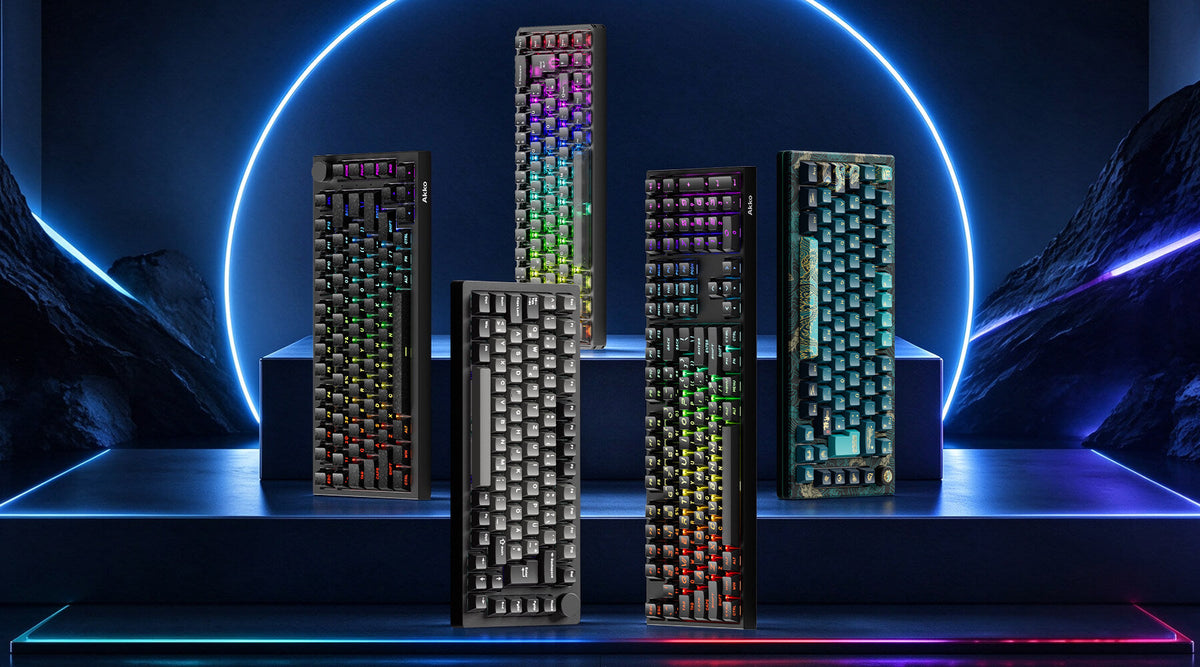
Akko Air 01- The Perfect Low-Profile Mechanical Keyboard for Mac & Windows Users
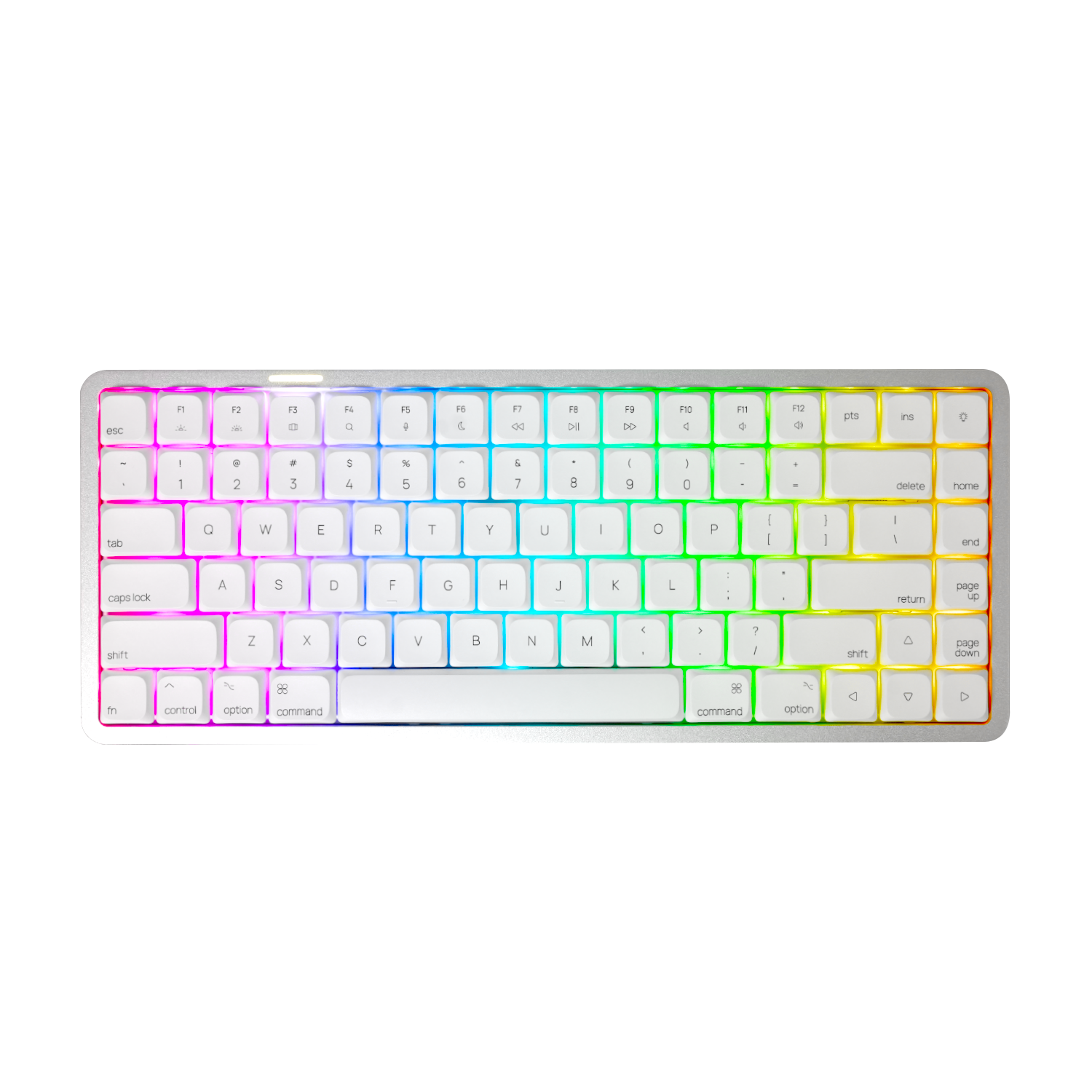
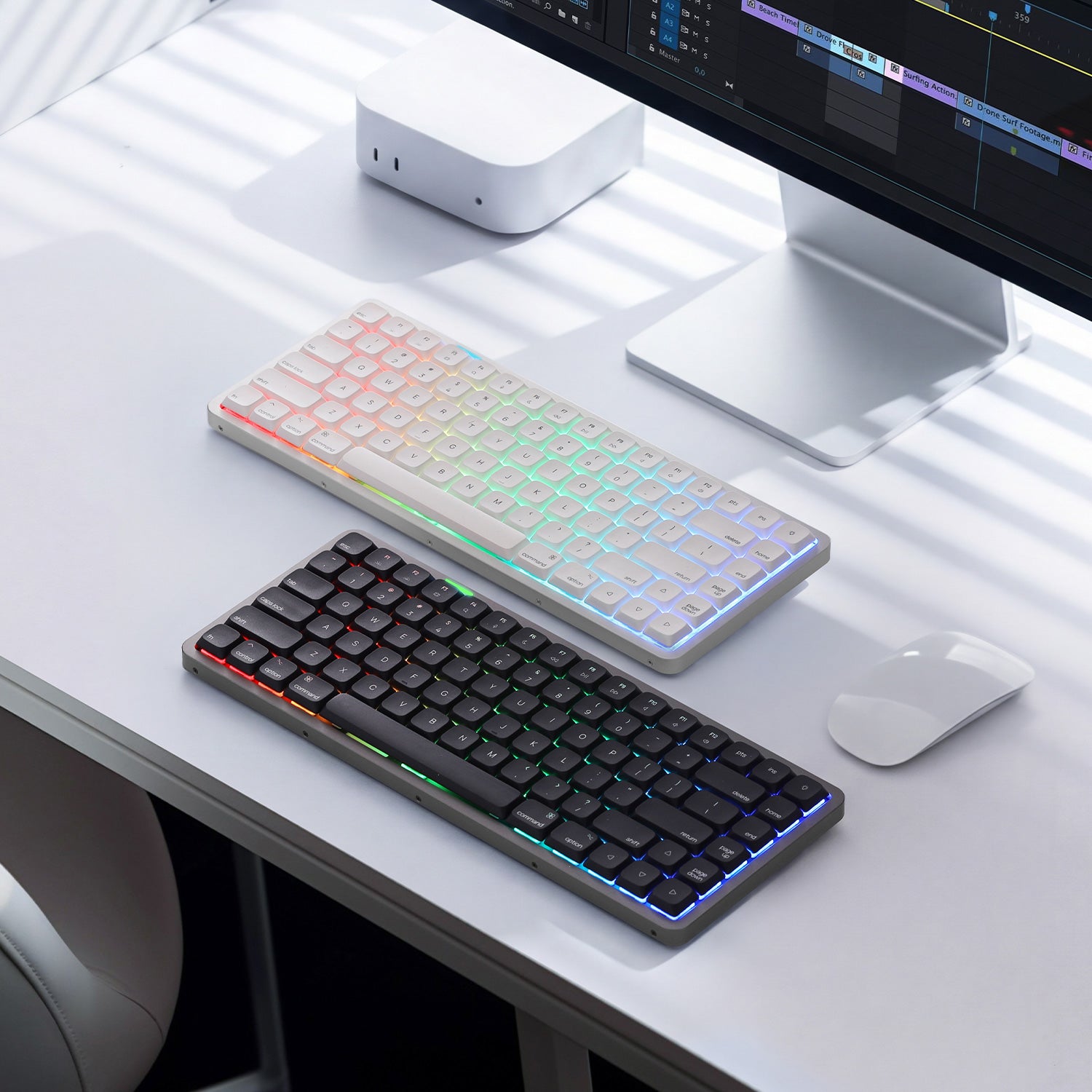
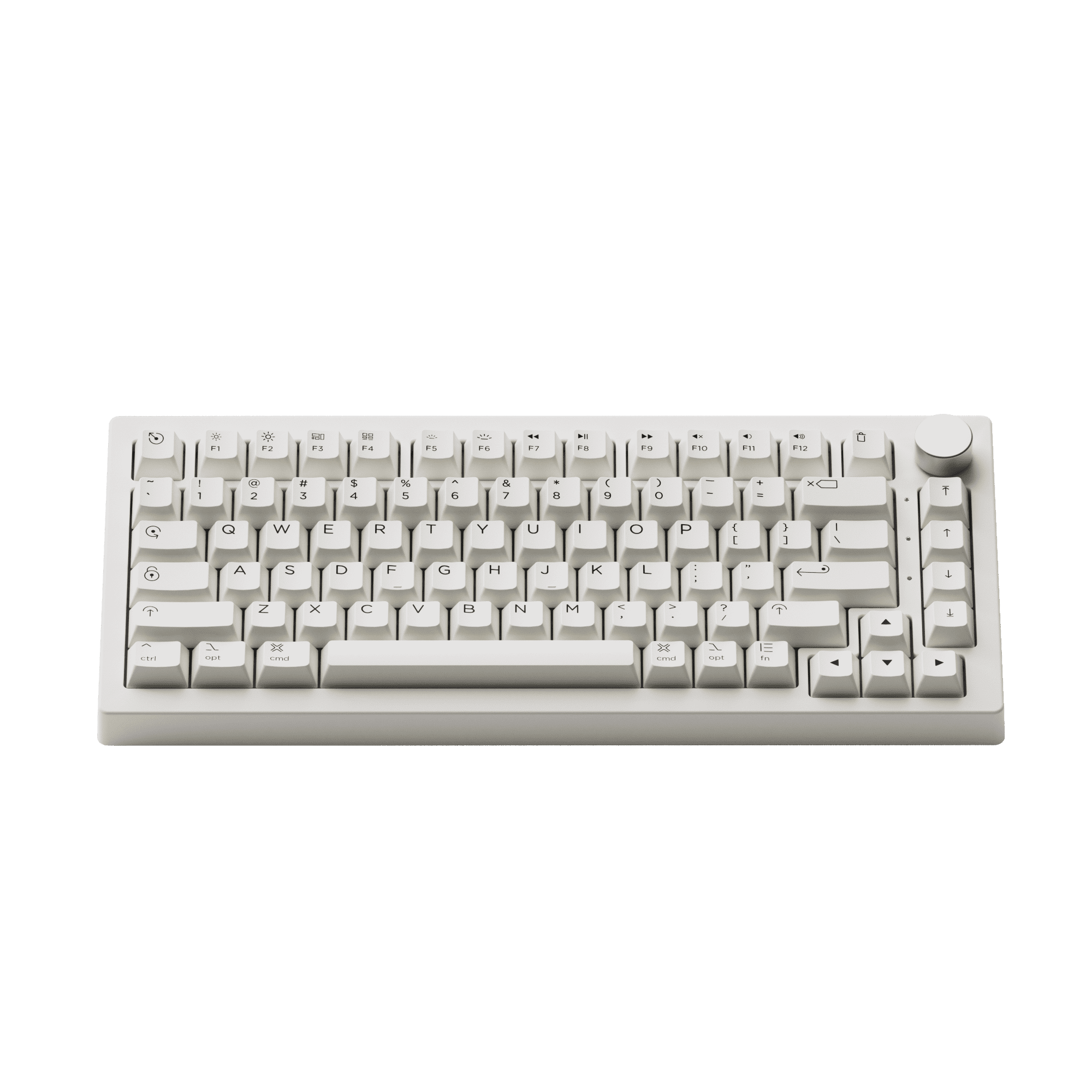
If you're exploring the differences between Mac and Windows keyboards, a great real-world example that bridges both ecosystems is the Akko Air 01. It’s designed to work seamlessly across macOS and Windows, making it an ideal choice for users who switch between both systems or want a more modern, unified typing experience.
Akko Air 01 is a low-profile mechanical keyboard built with a native Mac layout, while still fully supporting Windows key mappings. It combines a clean Apple-like design with the flexibility of a mechanical keyboard, making it especially relevant for users comparing Mac vs Windows setups.
- Native Mac layout + Windows compatibility
- Command and Option keys included for macOS users
- Windows keycaps and shortcuts supported out of the box
- Smooth low-profile typing experience for long sessions
- Works well for productivity, coding, and everyday use
- CNC aluminum body
- Tri-mode connectivity

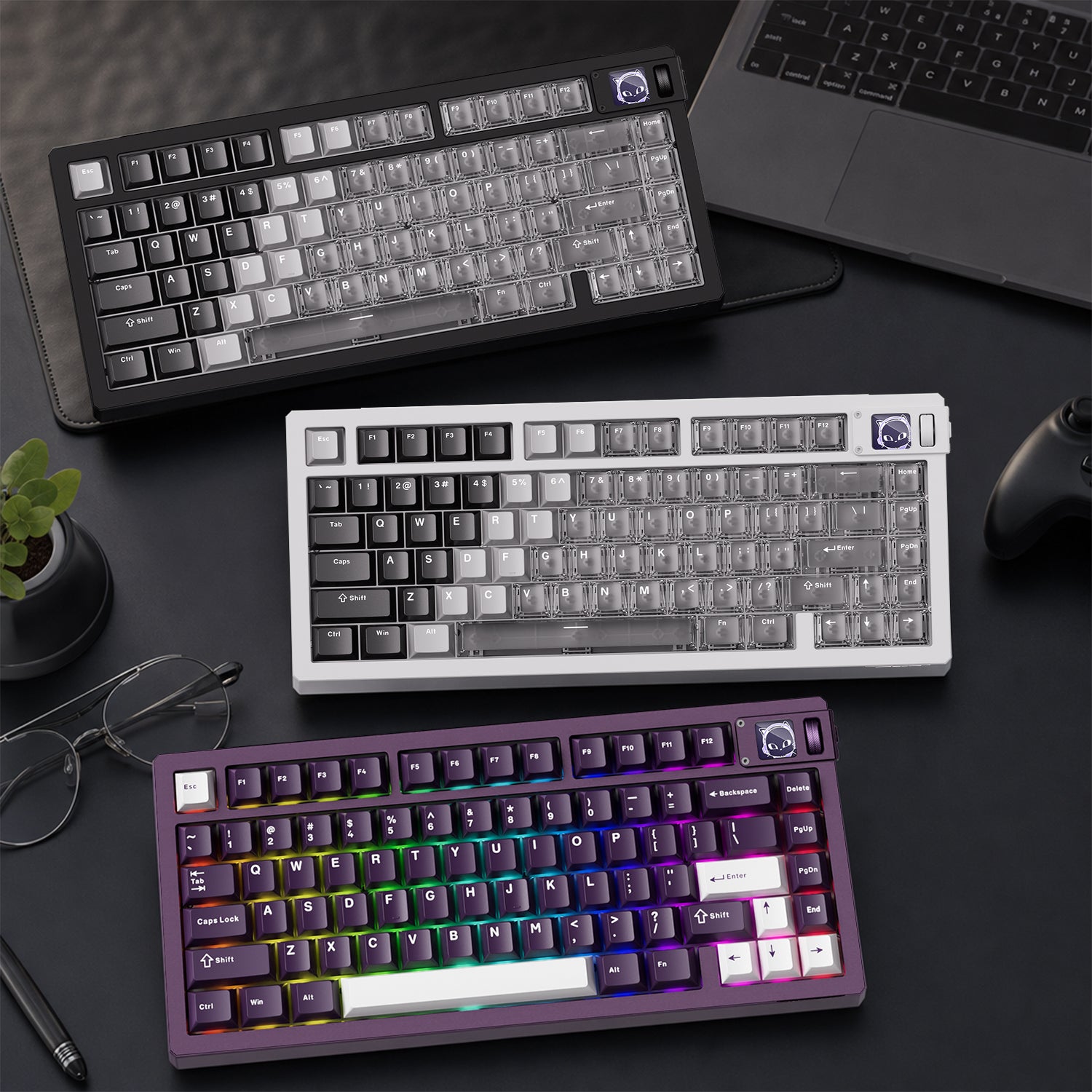
Akko 5075B Plus Air- The Perfect Mechanical Keyboard for Mac Users
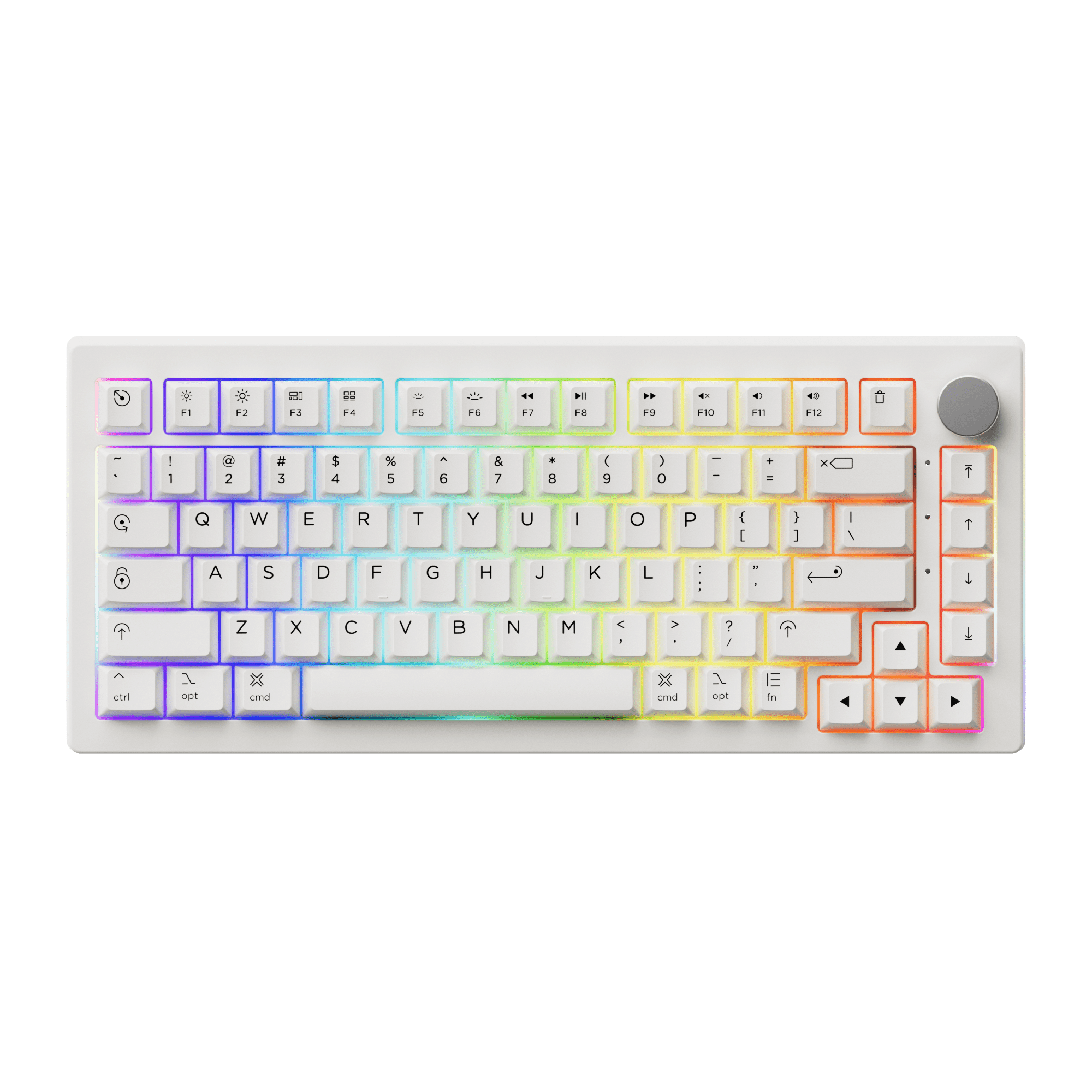
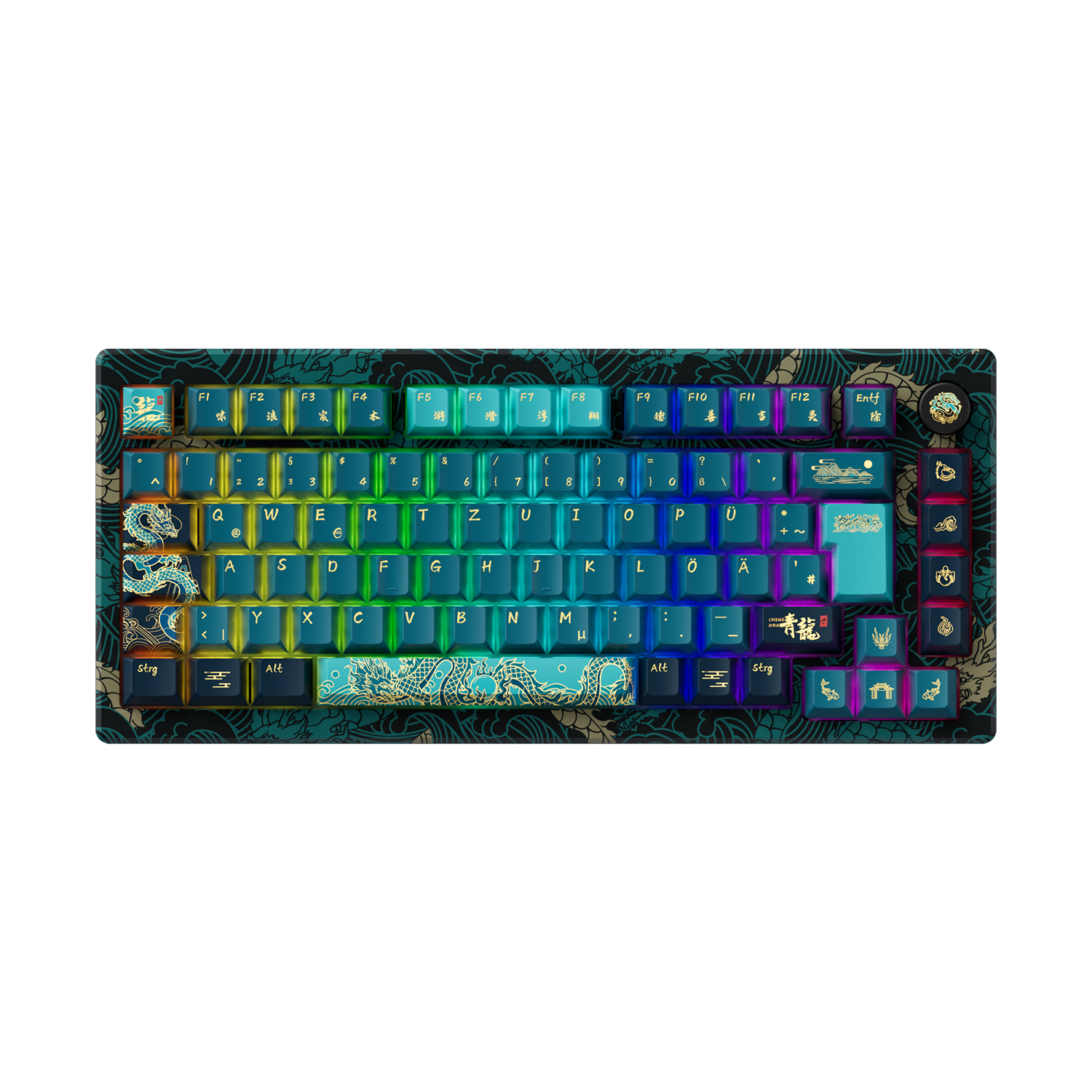
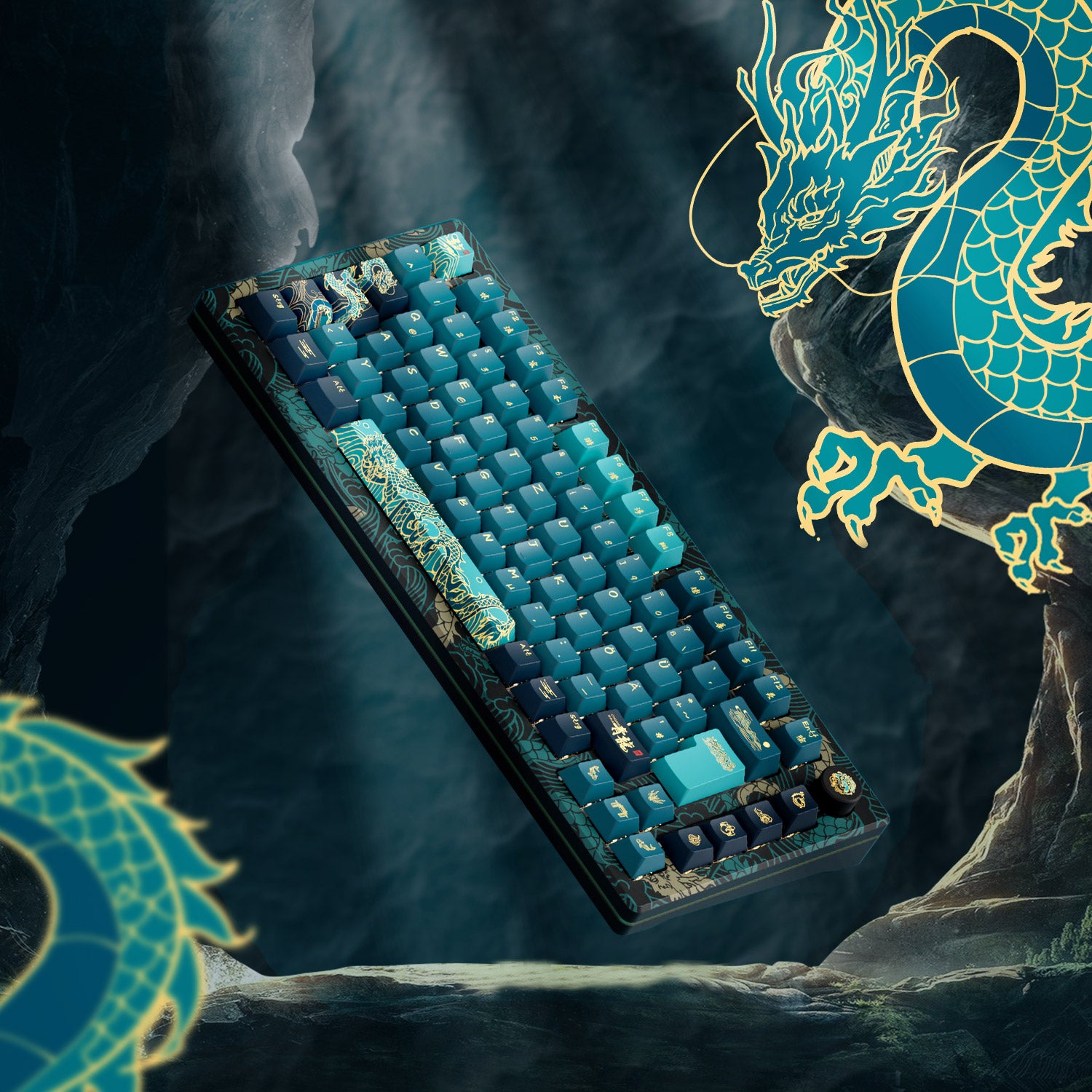
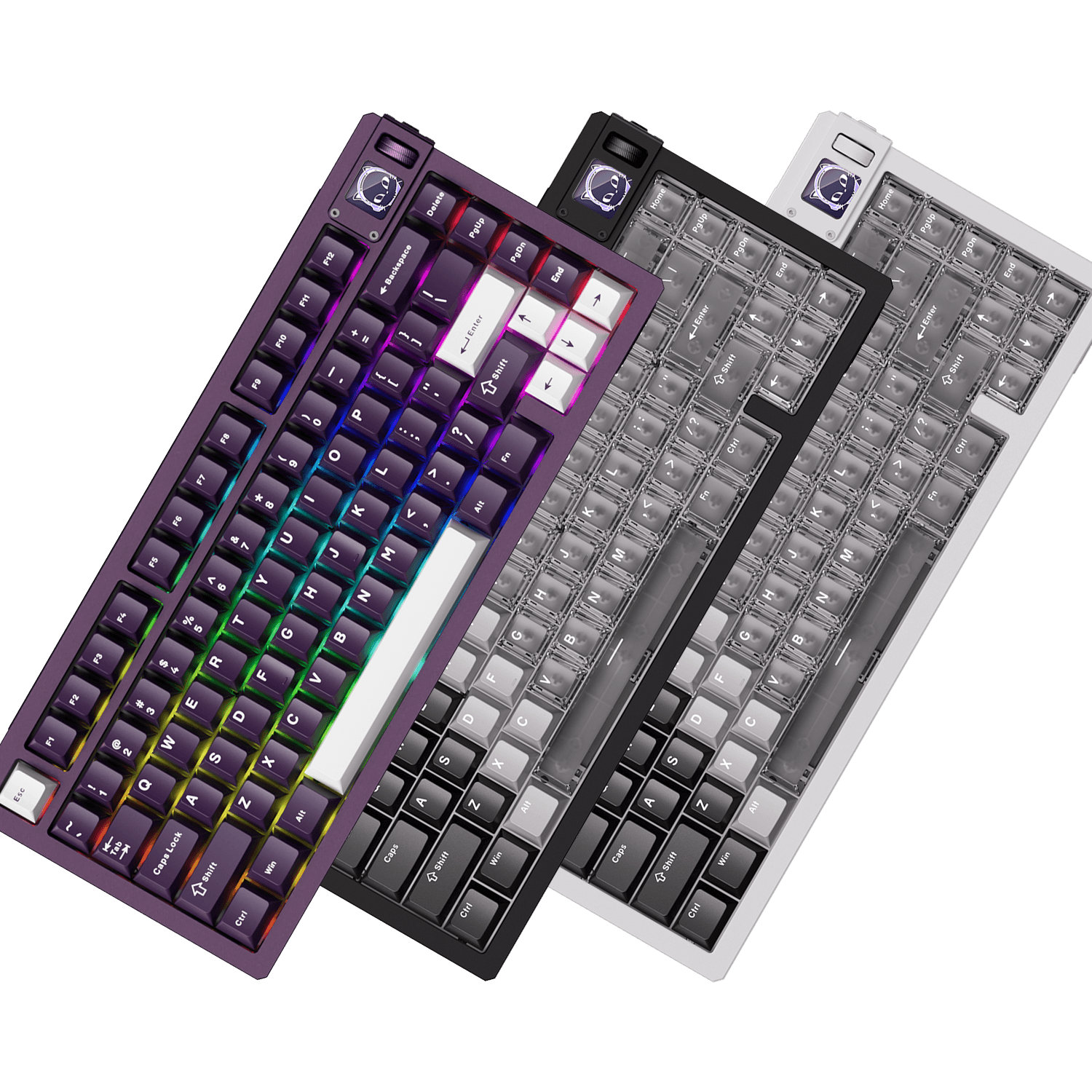
If you're looking for a Mac-compatible mechanical keyboard that offers a premium typing experience, the Akko 5075B Plus Air is a fantastic choice. Designed with versatility and performance in mind, this keyboard is ideal for both macOS and Windows users.

- Seamless Mac Compatibility: Mac keycaps are perfectly adapted to macOS, providing you with a better typing experience.
- Premium Typing Experience: Gasket mount can offer a soft, bouncy typing feel.
- Triple-Mode Connectivity: Suitable for multi-senerios with 2.4Ghz Wireless, BT 5.0 and USB-C Wired mode
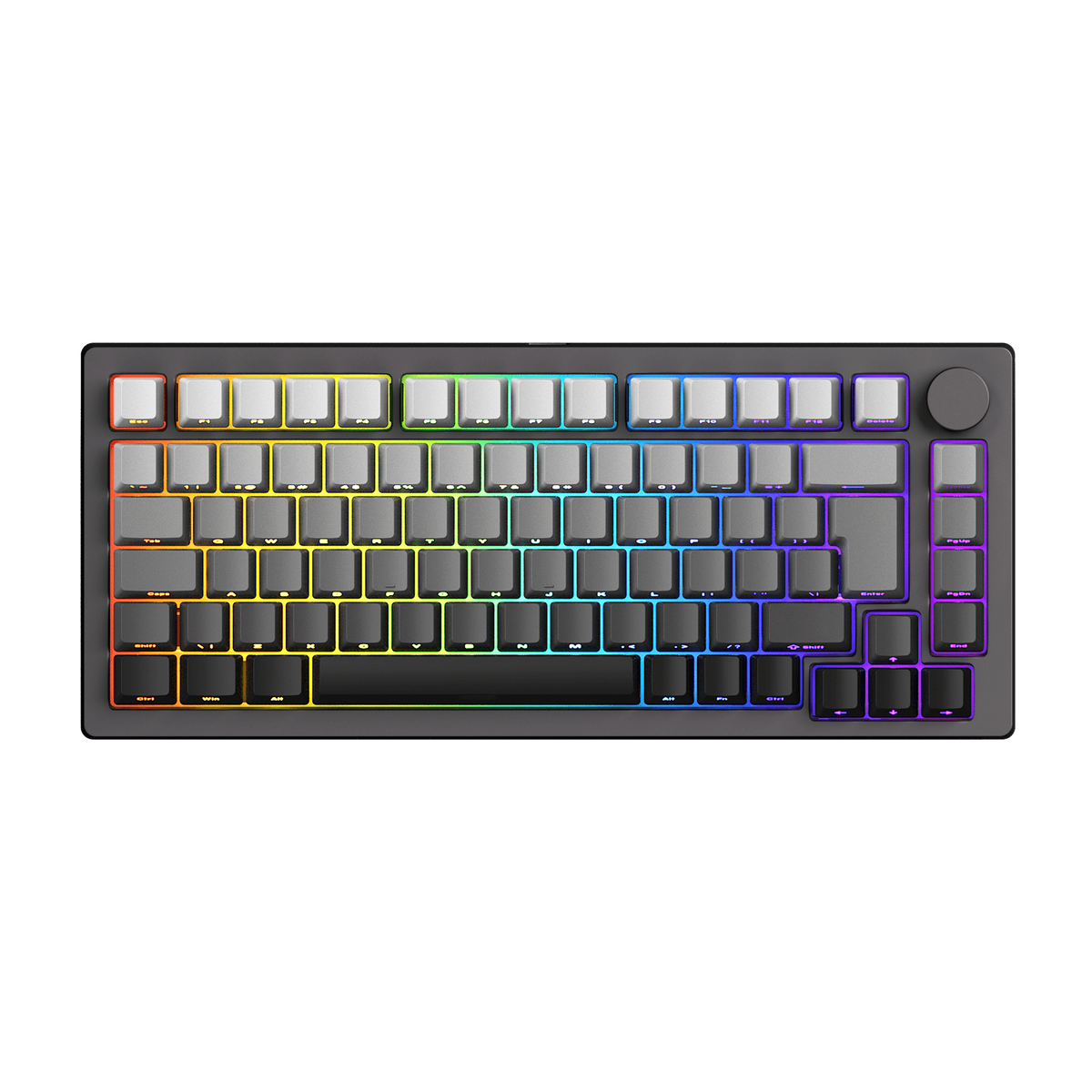
- 75% Layout: Perfect balance of functionality and space-saving design.
If you want the best of both worlds—mechanical feel and full macOS compatibility, Akko 5075B Plus Air is an excellent choice.




Commenta
Nota che i commenti devono essere approvati prima di essere pubblicati.
Questo sito è protetto da hCaptcha e applica le Norme sulla privacy e i Termini di servizio di hCaptcha.