







Whether you're a competitive gamer, an office professional, or new to PC peripherals, your mouse and keyboard's actual performance matters more than you might think. Are the specifications accurate? Is your device achieving its claimed polling rate? Could input issues be affecting your experience?
Instead of guessing, you can find out with our free online testing tools. It measures the key performance metrics of mice and keyboards, giving you clear, real-world data. In this guide, we'll explain what these metrics mean and how to use the tool to get reliable results.
Key Metrics That Define Performance
When it comes to keyboard and mouse performance, do you know what really matters?
1. The Basic Function Test
First, make sure your device is functioning properly. Some of the most common issues users encounter include:
- A key doesn't register when pressed, or a single press types multiple characters.
- Mouse buttons double-click unexpectedly or fail to respond.
- The scroll wheel jumps, scrolls in the wrong direction, or stops responding.
These basic functionality is the foundation of performance. Before testing polling rate or latency, make sure all keys, buttons, and the scroll wheel are working correctly. Even the fastest device won't perform well if its inputs are unreliable.
2. Responsiveness: Polling Rate Test
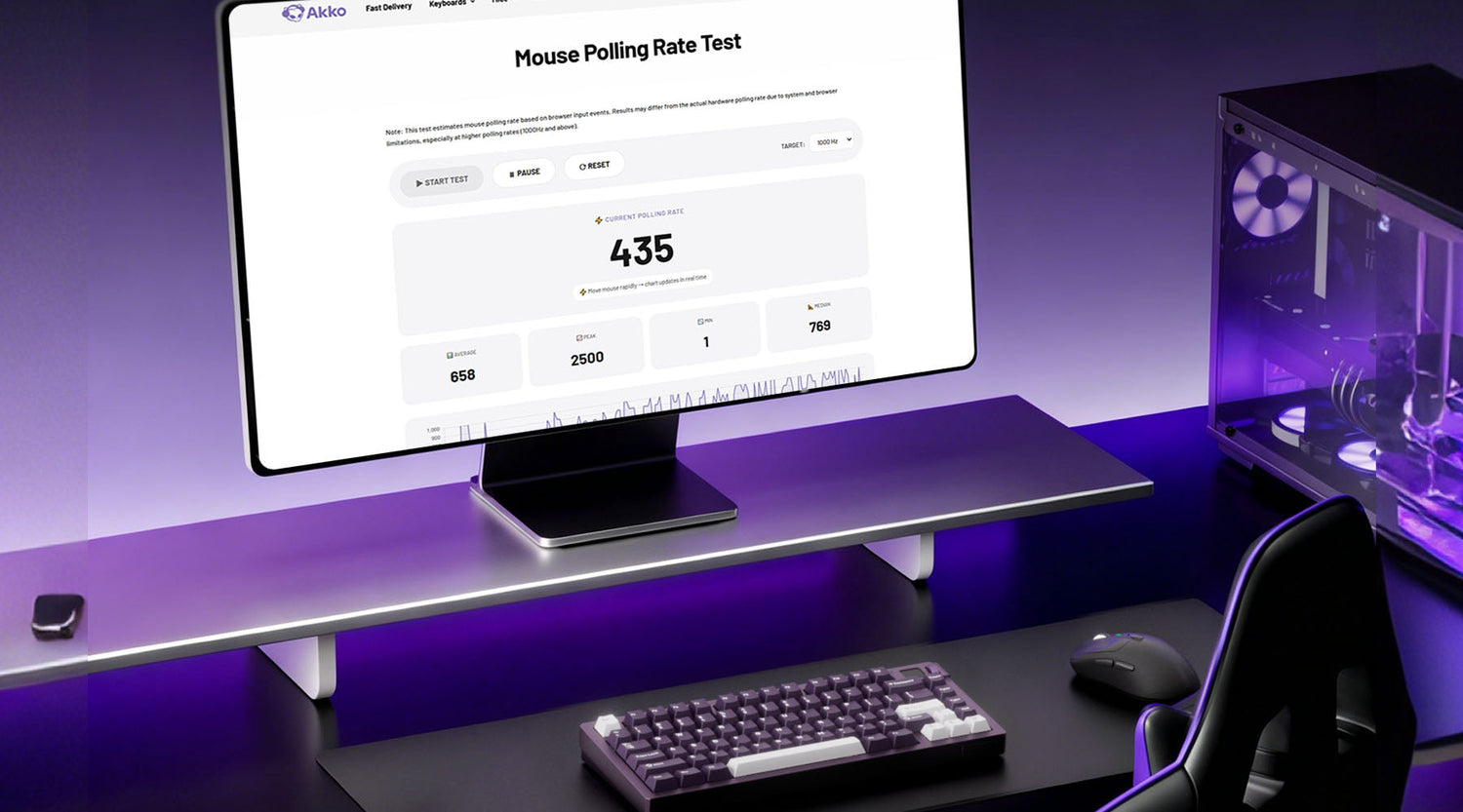
Polling rate, measured in Hz, indicates how many times a keyboard or mouse reports to the computer each second. A higher polling rate generally means faster, more responsive input.
- 125Hz = reports 125 times per second (about 8ms intervals)
- 1000Hz = reports 1000 times per second (about 1ms intervals)
For gamers, lower latency can improve responsiveness in fast-paced games. For everyday users, it can make cursor movement and input feel smoother and more immediate.
Testing your device's actual polling rate can help verify that it is performing as expected and identify potential configuration or hardware limitations.
Related Article:
What Is Mouse Polling Rate? (125Hz vs 1000Hz vs 8000Hz Explained)
What is the Polling Rate on A Keyboard?
3. Click Speed: CPS
Click speed measures how many clicks you can register in one second and is a key indicator of clicking speed and efficiency. Measured in CPS (Clicks Per Second).
Click speed is especially important in fast-paced games, where you may notice issues such as:
- Losing click battles in Minecraft PvP
- Slower skill or item activation in MOBA games
- Limited firing rate with semi-automatic weapons in FPS games
These problems are mainly related to your maximum clicking speed. Higher CPS supports faster actions and smoother combos in games, while for productivity tasks it can improve efficiency in repetitive operations.
4. Sensitivity and Control Feel
If you've ever experienced any of the following issues:
- A new mouse feels much faster or slower than your old one.
- You can't recreate your preferred sensitivity settings in a new game.
- The cursor feels inconsistent, making the same hand movement produce different results.
The root cause is often related to DPI and eDPI. DPI determines your mouse's hardware sensitivity, while eDPI reflects your overall sensitivity after in-game settings are applied. Understanding both can help you achieve a more consistent and comfortable experience across devices and games.
Try Our Free Online Testing Tools
No specialized equipment or complicated setup is needed. Our free online tool provides quick, comprehensive testing for keyboards, mice, and headset.
For keyboard key testing, press each key as prompted to check its response status and identify issues like missed inputs or double clicks. For keyboard polling rate testing, type normally and the system will automatically measure the input frequency.
For CPS testing, click as quickly as possible within the given time. The tool records your click frequency in real time and calculates your CPS automatically. For DPI testing, move your mouse normally while the system tracks cursor movement to estimate DPI. Other tests, including polling rate, button response, and scroll wheel behavior, are also guided step by step.
These tools generates real-time results so you can easily monitor key performance metrics.
| Tool | Purpose | Key Benefit |
|---|---|---|
| Keyboard Key Test | Tests each key individually (ANSI & ISO supported) | Detects key failures, input lag, and conflicts for accurate input performance |
| Keyboard Polling Rate Test | Measures keyboard signal transmission frequency | Ensures real-time responsiveness and reduces input delay |
| Mouse CPS Test | Measures clicks per second and click stability | Helps optimize rapid clicking performance for gaming |
| Mouse DPI Test | Calibrates and verifies mouse sensitivity | Ensures precise cursor control for gaming and design work |
| Mouse Polling Rate Test | Measures mouse reporting frequency | Reduces input lag for smoother and more responsive control |
| Mouse Button Test | Tests all mouse button functions | Identifies issues like double-clicking, stuttering, or unresponsive clicks |
| Mouse Scroll Test | Evaluates scroll wheel smoothness and accuracy | Improves scrolling stability and camera control |
| Mouse eDPI Calculator | Calculates effective DPI from DPI + in-game sensitivity | Helps maintain consistent aim and muscle memory across games |
For the polling rate test, it’s important to note that results may not fully reflect the device’s true hardware performance. Because the test runs in a browser, factors such as browser sampling behavior, CPU load, and background processes can all affect high-frequency signal capture.
However, the results still provide a useful indication of response stability and can help you quickly assess whether the device is performing within an expected range.
Common Problems & What They Mean
Many users focus too much on specs, assuming higher numbers always mean better performance. In reality, real-world experience depends on how well a product matches your needs. Here are four common misconceptions that can lead to poor purchasing decisions.
Misconception 1: Higher DPI Is Always Better
Many users assume that a higher DPI automatically means a better mouse. In reality, DPI should match your usage scenario, not simply be as high as possible.
The Truth: Excessively high DPI can make the cursor overly sensitive, reducing control and precision. For tasks like graphic design, photo editing, or detailed office work, a moderate DPI often provides a more comfortable and accurate experience. What matters most is stable tracking and flexible DPI adjustment, not the highest number on the spec sheet.
Tip: Choose a DPI setting that fits your workflow and screen resolution. Focus on tracking accuracy and consistency rather than the maximum DPI rating.
Misconception 2: Higher Polling Rate Always Means Smoother Gameplay
A higher polling rate can reduce input latency, but bigger numbers don't always translate into a better experience.
The Truth: Higher polling rates, such as 8000Hz, place greater demands on the CPU and USB bandwidth. On older systems or lower-spec hardware, this can lead to reduced stability or inconsistent performance. For everyday use and office work, the difference between 500Hz and 1000Hz is barely noticeable, while lower polling rates can reduce system load and improve battery life on wireless devices.
Tip: Choose a polling rate that matches your hardware and usage. Stability and consistency matter more than simply selecting the highest available setting.
Misconception 3: Higher CPS Always Means Better Gameplay
A higher CPS (Clicks Per Second) can improve click speed, but it doesn't automatically make you a better player.
The Truth: Gaming performance depends on many factors, including accuracy, reaction time, game sense, and strategy. Chasing higher CPS at the expense of precision can lead to missed shots, mistimed abilities, and inconsistent performance. In addition, many games have built-in limits on click registration, meaning extremely high CPS may provide little or no practical advantage.
Tip: Aim for a comfortable and consistent CPS rather than the highest possible number. Improving accuracy, timing, and decision-making will have a much greater impact on your gameplay.
Misconception 4: Abnormal Test Results Mean Your Device Is Broken
Many users assume that unusual test results indicate hardware failure and immediately consider replacing their device.
The Truth: Test results can be affected by many external factors, including USB connection quality, wireless interference, background applications, and testing conditions. Fluctuations in performance data do not necessarily mean the device is defective. In many cases, the issue can be resolved by improving the testing environment or eliminating sources of interference.
Tip: Before replacing your device, check connections, close unnecessary background programs, and repeat the test under proper conditions. If abnormal results persist across multiple tests, then consider whether repair or replacement is necessary.
When Should You Upgrade Your Gear?
1. Performance No Longer Meets Your Needs
If testing reveals low polling rates, unstable DPI, input lag, or inconsistent performance, your device may no longer be suitable for your needs.
- For gamers, this can affect accuracy and reaction time.
- For office users, designers, writers, and programmers, it can reduce productivity and comfort.
If performance issues are impacting your daily work or gameplay, it may be time to consider an upgrade.
2. Hardware Wear Is Affecting Reliability
Over time, mouse switches, scroll wheel encoders, and keyboard switches naturally wear out. Common signs include double-clicking, missed clicks, inaccurate scrolling, unresponsive keys, or inconsistent key presses.
If these issues persist after cleaning or basic troubleshooting, and repair costs approach the price of a replacement, upgrading is often the more practical and cost-effective choice.
When reliability becomes a recurring problem, replacing the device may save both time and money.
3. Advanced Needs Outgrow Your Devices
As usage demands increase, older devices may no longer keep up.
A mouse suited for office work may feel slow or unresponsive in competitive gaming due to limited polling rate or latency. A basic keyboard can also become a bottleneck under heavy typing or creative workloads as its stability and durability fall short.
When your workload exceeds the original design purpose of your device, the limitation is no longer failure—it’s capability mismatch.
4. Persistent Lag After Troubleshooting
If you’ve already optimized your system—closing background tasks, switching USB ports, cleaning the device, and updating drivers—but still experience lag, unstable DPI, or occasional input freezing, the issue may be hardware-related.
When external causes are eliminated and problems continue frequently, the device is likely the limiting factor. At this stage, upgrading becomes the most practical solution rather than further troubleshooting.
Before Upgrading: Check Your Warranty
Before replacing your device, check its warranty status. Most issues such as double-clicking or scroll wheel failure are covered within the typical 1–3 year warranty period. Check your purchase records and contact support first—an official replacement is often more cost-effective than a new purchase.
Conclusion
Understanding mouse and keyboard performance can help us achieve a smoother, more responsive experience in gaming, work, or creation. Metrics like CPS, DPI, and polling rate reveal real performance beyond spec sheets. A quick test can uncover issues like input delay, inconsistent tracking, or unresponsive keys that often impact usability more than expected. If results fall short, you’ll know whether to adjust settings, troubleshoot, or upgrade.






Hinterlasse einen Kommentar
Alle Kommentare werden vor der Veröffentlichung geprüft.
Diese Website ist durch hCaptcha geschützt und es gelten die allgemeinen Geschäftsbedingungen und Datenschutzbestimmungen von hCaptcha.