








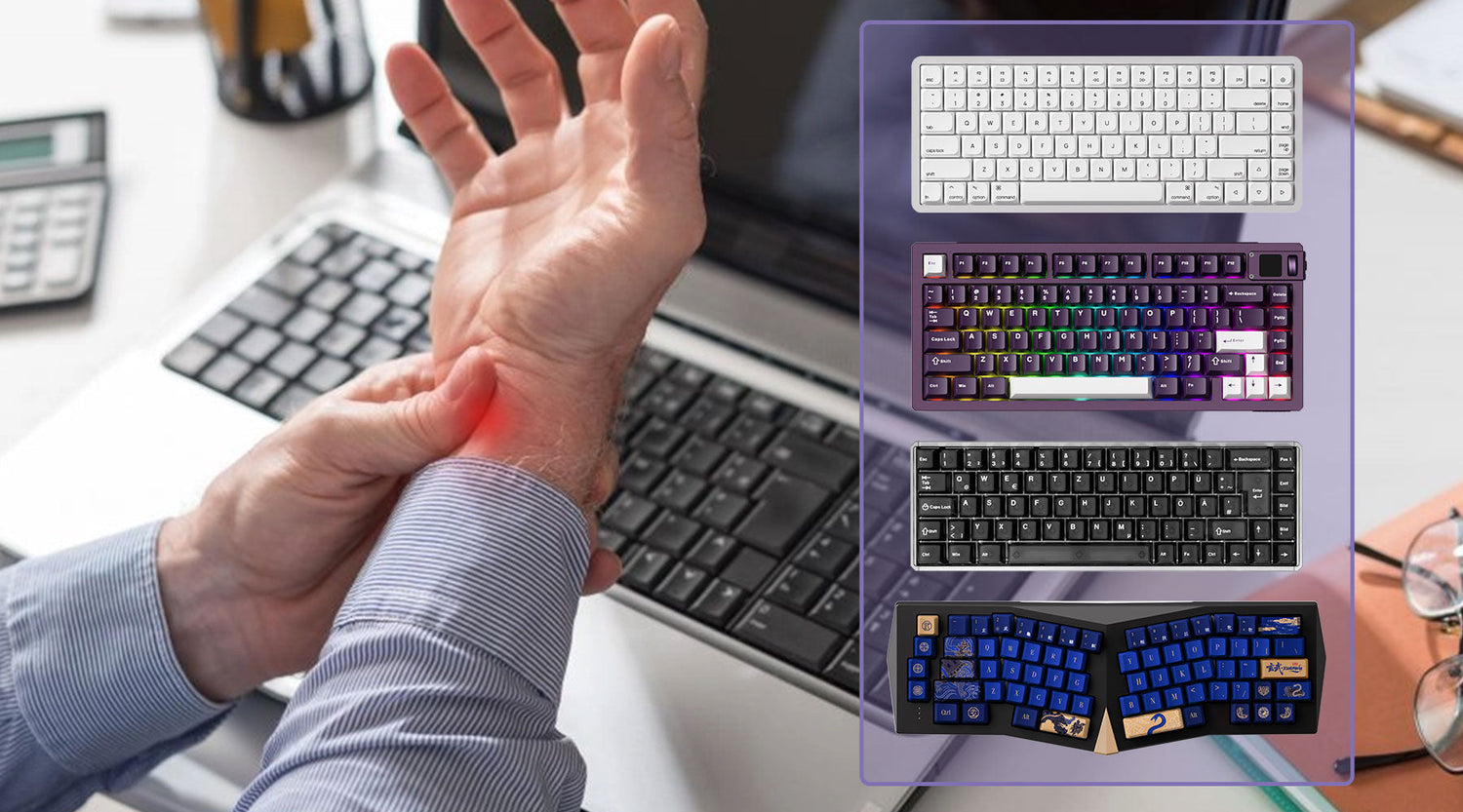
Carpal Tunnel Syndrome (CTS) is becoming more common among people who spend long hours typing. We use tech devices every day. They make life easier, but they can also cause discomfort — like finger numbness or wrist soreness
How Carpal Tunnel Develops During Typing?
Carpal tunnel syndrome (CTS) is a condition caused by compression of the median nerve within the carpal tunnel, and is common in people who engage in repetitive hand movements over a long period of time.
1. Incorrect Wrist Position
Poor wrist alignment is one of the most common triggers of median nerve compression.
- Wrist Extension (upward bending): This happens when the keyboard sits too high or has excessive positive tilt, forcing your wrists to lift while typing.
- Ulnar Deviation (side bending): A straight, non-split keyboard can push your wrists outward to reach the keys, tightening tendons and reducing space in the carpal tunnel.
- Hard Surface Pressure: Resting your wrists on the edge of a desk or pressing them into a hard surface also adds direct compression.
2. Repetitive Finger Movements
When you type, the nine finger-flexor tendons inside the carpal tunnel move rapidly in short, repeated strokes. This constant friction can irritate the tendons and their synovial sheaths, leading to inflammation and swelling (tenosynovitis), which further narrows the already limited space in the carpal tunnel.
3. Excess Typing Force
Hitting the keyboard too hard puts extra stress and friction on your tendons.
Even between keystrokes, your fingers often stay lifted instead of fully relaxing. This keeps your hand muscles tight for long periods, reduces blood flow, and makes fatigue and inflammation set in faster.
4. Poor Overall Posture
Not only the wrist alignment, but your whole body also affects wrist alignment.
Just like:
- The desk is too high, or the chair is too low
- Leaning forward (shoulder tension changes hand angle)
- Wide arm positioning when using large keyboards
- The mouse is placed too far from the keyboard
What Makes a Keyboard Carpal Tunnel Friendly?
The core principle of carpal tunnel syndrome-friendly keyboards is to minimize pressure on the wrists, palms, and fingers, and maintain a natural and neutral hand posture.
1. Neutral Wrist Angle
When your wrist stays bent inward for long periods, it puts constant pressure on the median nerve and the flexor tendons inside the carpal tunnel.
A keyboard supporting negative tilt can avoid excessive wrist flexion or supination and maintain a natural, neutral wrist position.
2. Light Activation Force
Switches that require minimal force reduce the distance your fingers need to travel, helping you type with less effort.
3. Adjustable Actuation Distance
Keyboards with customizable travel—such as magnetic switch keyboards—allow users to shorten keystroke distance, reducing repetitive finger movement and lowering overall muscle load.
4. Ergonomic Layout
Layouts that minimize ulnar deviation (wrist bending outward) and reduce finger stretching help maintain a natural typing posture. Compact layouts also reduce shoulder strain by keeping hands closer together.
5. Wrist Support Compatibility
The ability to pair with wrist rests or support pads further improves alignment and reduces compression on the carpal tunnel.
What Types of Keyboards to Consider for Carpal Tunnel?
Based on these core needs, the following keyboard types can help reduce wrist strain while keeping typing efficient:
1. Ergonomic / Split Keyboards
The keyboard’s left and right halves are separated, letting users adjust the spacing to match their shoulder width. This prevents inward wrist rotation that can compress the median nerve, reducing wrist strain and supporting natural hand posture.
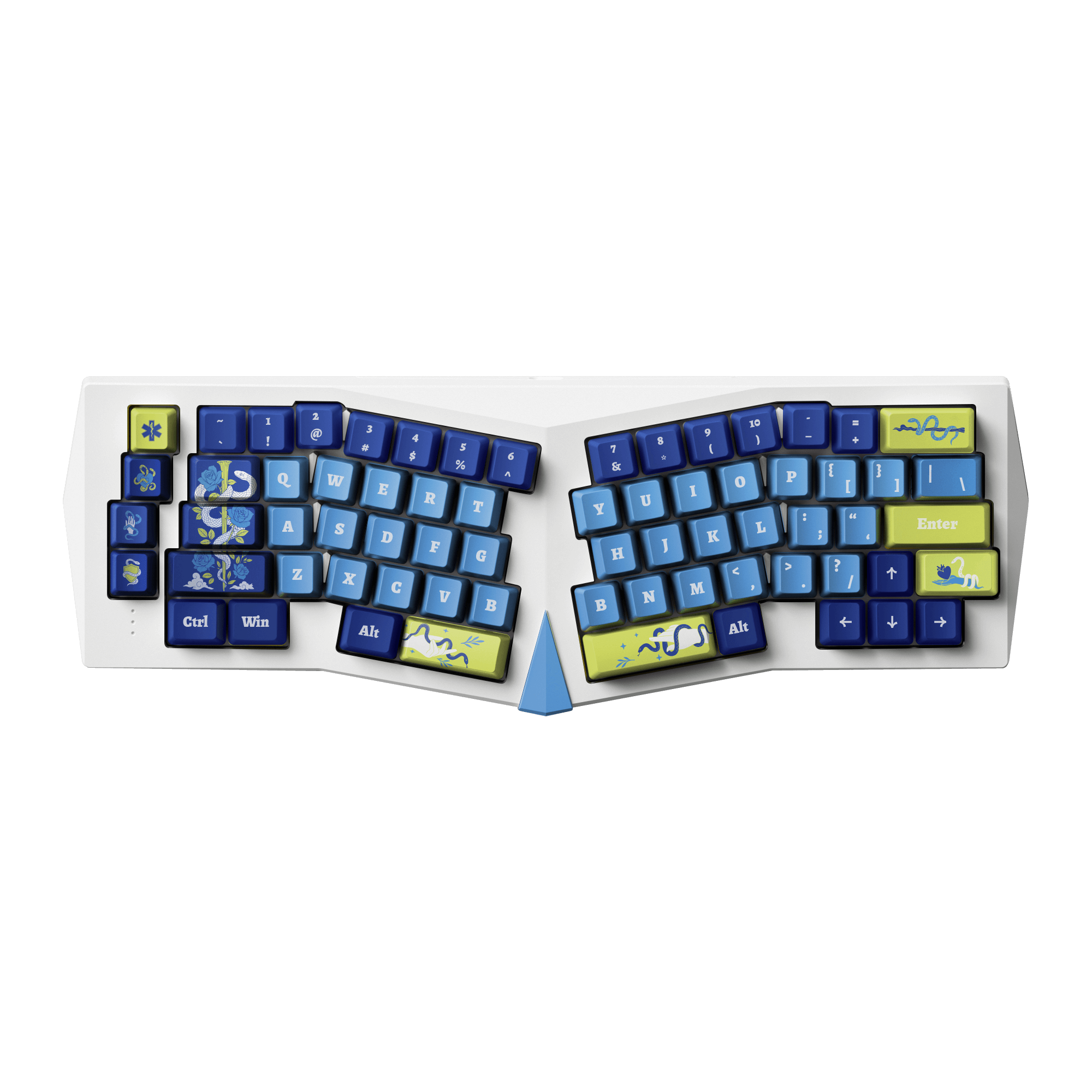
If you don't want to try the split keyboards, the tented Alice keyboard is also a good choice. The raised center section creates a natural tilt angle. And the Alice layout can make you type with your hands slightly outward, reducing wrist flexion and alleviating carpal tunnel pressure.
2. Low Profile Keyboards
The short key travel reduces finger pressure and tendon friction, and the slim design keeps the keyboard close to the desk, letting your wrists rest naturally without having to lift them.
3. Mechanical Keyboard with Light-Force Switches
Heavy mechanical switches can force your fingers and wrists to exert more pressure. Using lighter-actuation switches means your fingers need less force to press keys — reducing cumulative stress on tendons, tendons sheaths, and the median nerve.
4. Compact Layout Keyboards
Smaller keyboards reduce the distance your fingers need to travel. Less reaching — especially for mouse or arrow keys — helps avoid awkward wrist/arm stretching, reducing strain over time.
Buying Guide: Which Keyboard Type Fits Your Needs?
When choosing a keyboard, the main goal is to keep your wrist straight and relaxed while typing.
Here are the different use cases recommended keyboard type:
| Use Case | Recommended Keyboard Type | Why It Helps |
|---|---|---|
| Users with existing wrist pain or diagnosed CTS | Split ergonomic + magnetic/light-force switches | Maximum wrist neutrality + minimal key force |
| Long-hour typists (writers, office workers) | Low-profile or magnetic switch keyboards | Reduces cumulative finger impact and wrist extension |
| Heavy typists who bottom out keys | Soft-linear or magnetic switch keyboards | Gentler keystrokes, less tendon stress |
| Small desk space or compact setup | 60% / 65% / 75% compact keyboards | Less reaching, better shoulder alignment |
| Programmers & productivity users | Split ergonomic or 75% layout | Balance between comfort and full functionality |
| Gamers who need speed + low strain | Magnetic switch keyboards (rapid trigger) | Fast actuation, low force, reduced fatigue |
| Laptop users transitioning to external keyboards | Low-profile / slim keyboards | Familiar feel, minimal wrist lift |
| Users who cannot switch keyboards entirely | Compact keyboard + negative tilt accessory | Reduce extension even without buying a new model |
Recommended Akko Keyboards for Carpal Tunnel
Akko Magnetic Keyboard
If you prefer a customizable low-force typing experience, magnetic keyboards are a great choice. Allowing you to fine-tune actuation distance and lighten key pressure, making them especially suitable for users prone to wrist strain.
- Customizable actuation point & travel distance — you can often shorten travel so keys register with a lighter, gentler press.
- Low and smooth key force / no harsh mechanical contact — reduces repetitive stress on fingers, tendons, and wrist, helpful for long typing sessions.
- Consistent feel over lifespan — because the switch doesn’t rely on metal contacts, wear-and-tear is reduced, letting you rely on the same comfortable typing feel.
If you are concerned about wrist health, frequently type for long periods, and want to reduce wrist/finger fatigue/lower pressure on your median nerves, choosing Akko's magnetic switch keyboards as your overall direction is indeed a reasonable choice.
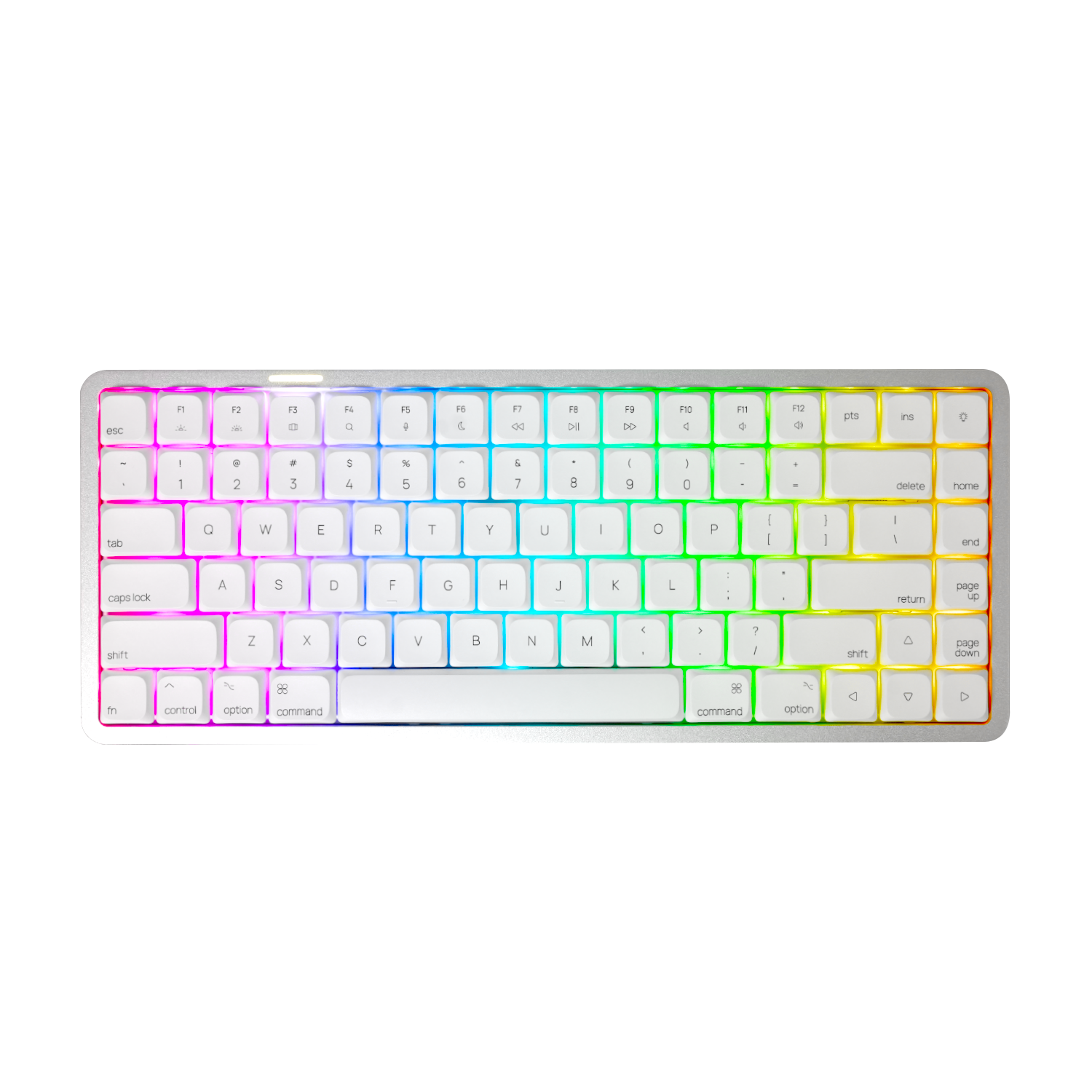
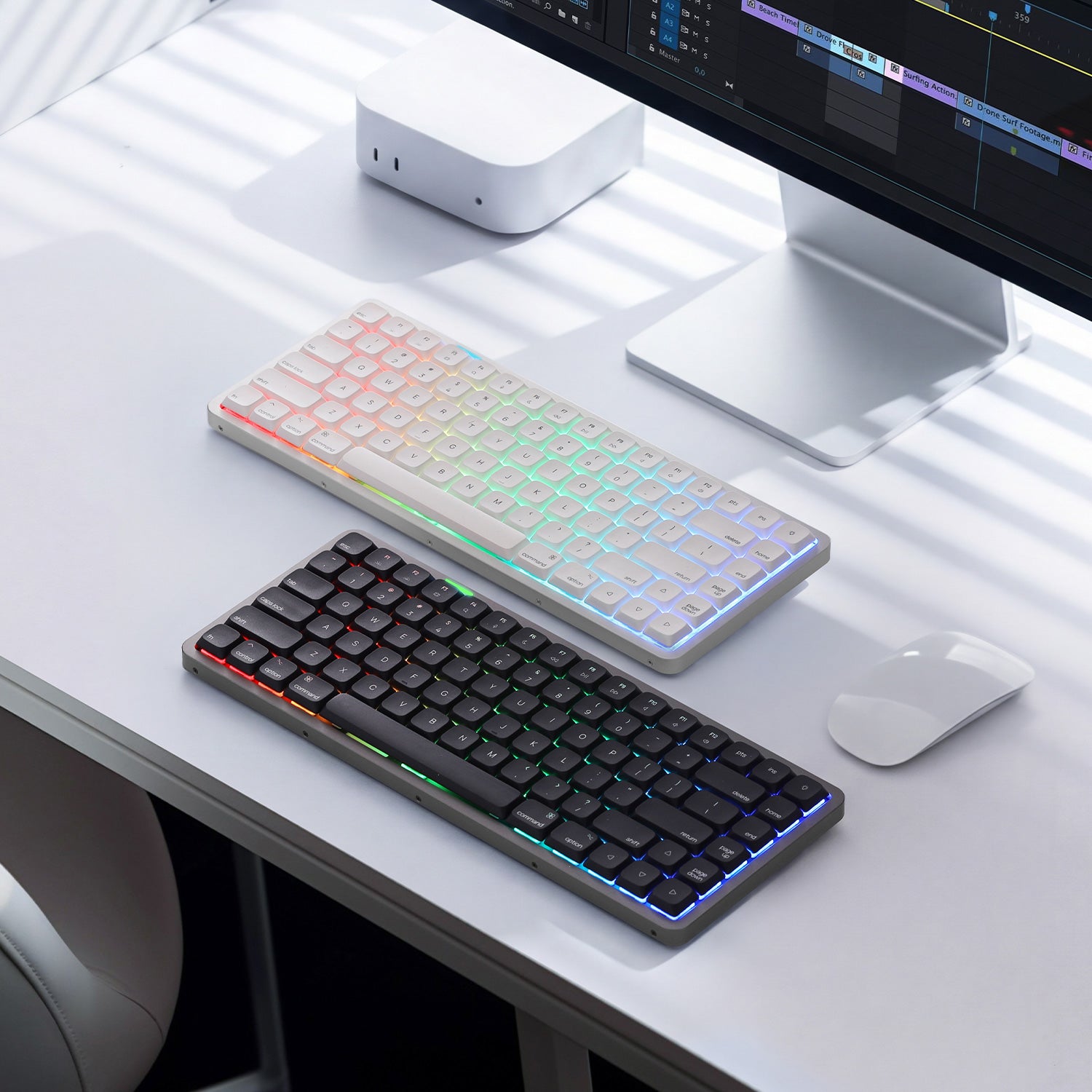
Akko Low Profile Keyboard- Air 01 Low Profile Mechanical Keyboard
Air 01's low-profile design significantly reduces the need to extend your wrists while typing, helping you maintain a more neutral and comfortable posture.
- For those used to laptop-style typing or who prefer a lower keyboard profile, the Air 01 provides a familiar, laptop-like feel while still offering the comfort and durability of an external keyboard.
- For office work, writing, and general typing—if you don’t need a special layout (like split, tented, or compact)—a low-profile keyboard with light key travel is one of the easiest ways to reduce wrist strain.
The Air 01 is ideal for users who prefer a simple, low-profile design and a neutral wrist posture. If you enjoy light keystrokes or the flat, effortless feel of a laptop keyboard, this is a very comfortable and user-friendly choice.

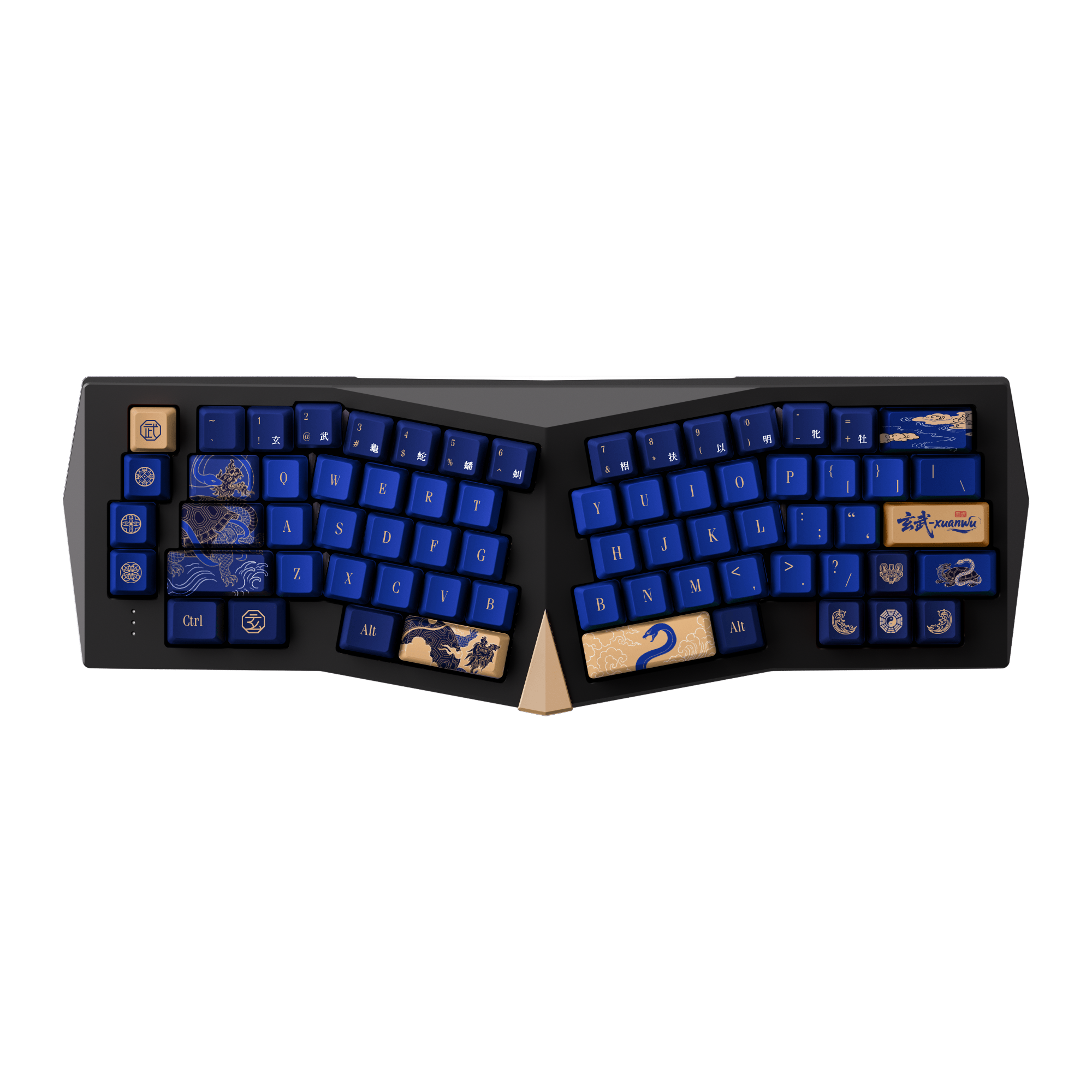
Akko Tented Alice Keyboard- Year of Snake - Armor
The Year of Snake - Armor keyboard features an Alice layout with a Tented design, allowing the hands and wrists to relax naturally, avoiding ulnar deviation (wrist tilting outward) or wrist extension that can occur with prolonged use of a traditional keyboard.
For those who type extensively for long periods and already experience mild carpal tunnel discomfort or frequent wrist/forearm tension, this layout significantly improves wrist and forearm angles, greatly helping to reduce stress and fatigue.
Furthermore, this keyboard also boasts a distinctive appearance- incorporating elements of Year of Snake's culture and design.

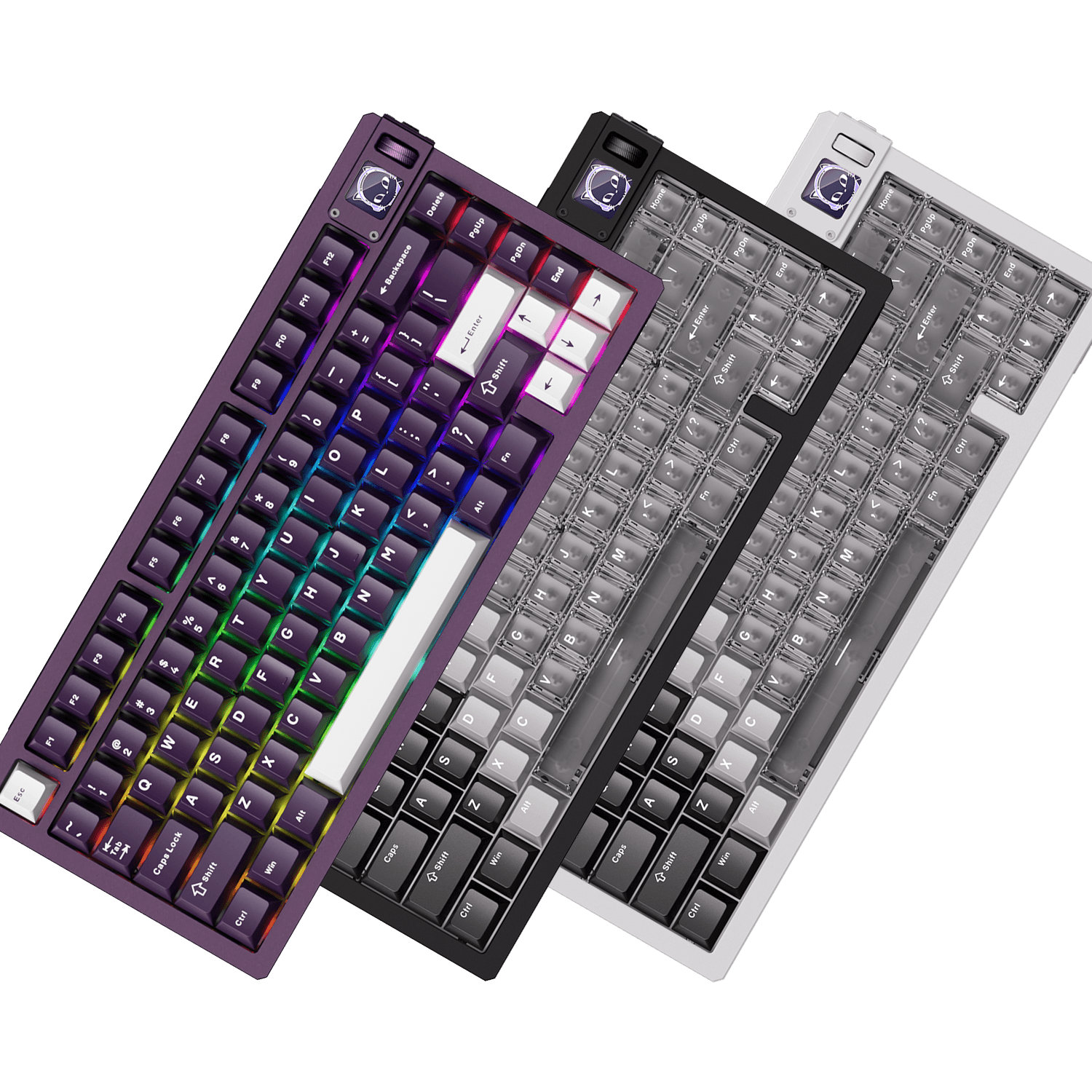
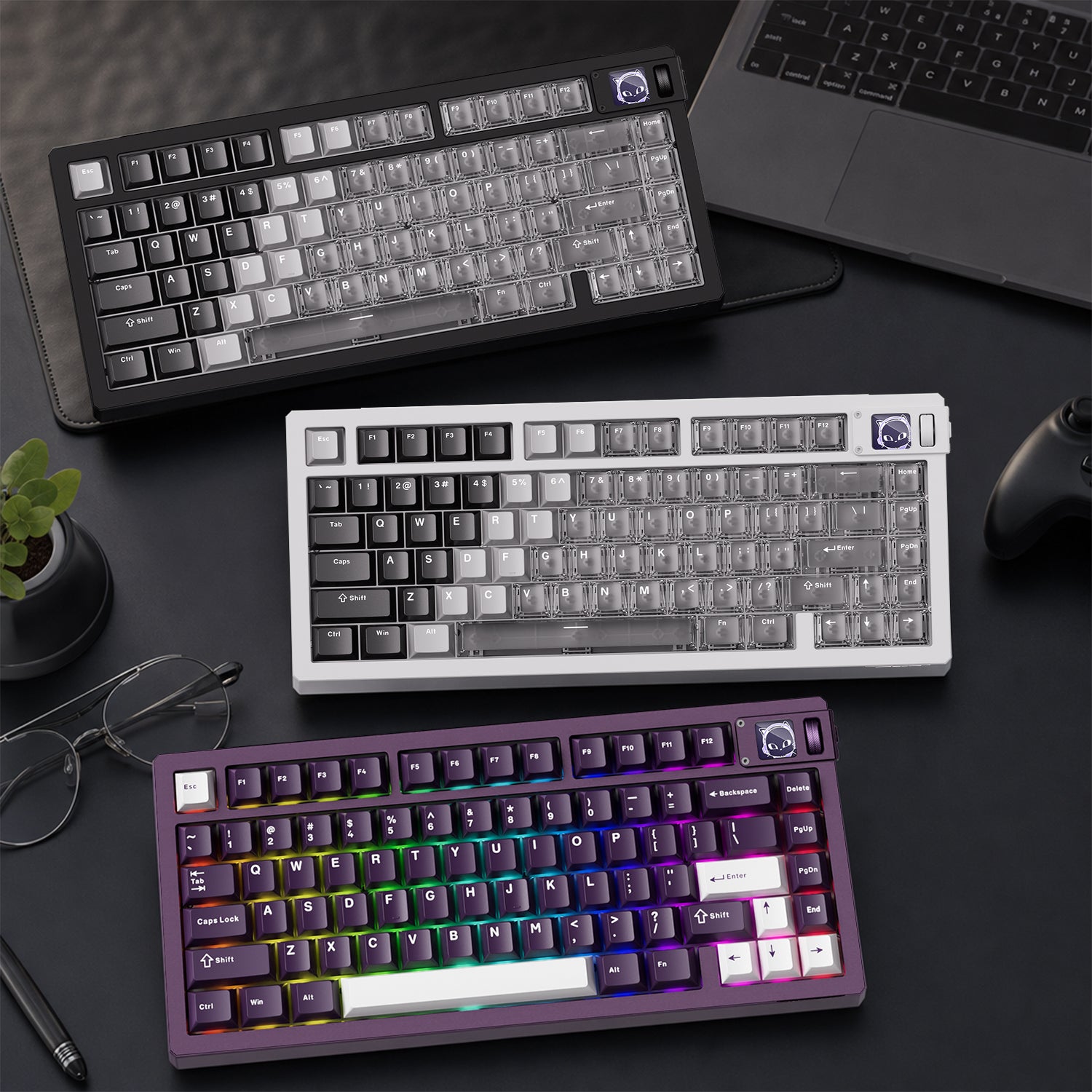
Akko Compact Keyboard - MOD68 HE ISO Magnetic Keyboard
MOD68 is a Hall-Effect keyboard with adjustable actuation distance—allowing you to set a shallower/lighter key actuation. This requires less force with each keystroke, helping to reduce the cumulative strain on your fingers and wrists.
Because both key travel and actuation sensitivity are adjustable, it allows you to find the "light typing mode" that best suits you if you have carpal tunnel syndrome or are prone to fatigue.
The keyboard layout is compact, bringing your hands closer together, reducing arm/shoulder/wrist extension, and making it more wrist alignment-friendly.
If you want to minimize keystroke force and reduce wrist/arm extension, this is a very balanced choice—especially suitable for heavy keyboard users who do long hours of text work, programming, and writing.
Additional Strategies Beyond the Keyboard
Think of your new keyboard as part of a healthy work ecosystem—not a standalone fix. The best protection for your wrists comes from combining the right tools, a supportive setup, good habits, and, when needed, proper medical care.
1. Ergonomic Adjustments for Your Workstation Setup
Even the best keyboard won’t help if it’s placed in the wrong position. A properly adjusted workstation plays a key role in protecting your wrists and reducing overall strain.
Chair & Desk Height:
Adjust your chair so your elbows are at about a 90-degree angle (or slightly wider), with your forearms parallel to the floor. Keep both feet flat on the floor or on a footrest, and make sure your thighs are level with the ground.
Keyboard & Mouse Position:
Place the keyboard and mouse directly in front of your elbows, close to your body, so your shoulders stay relaxed and your arms don’t have to reach forward. While typing, keep your wrists straight and aligned with your forearms.
Monitor Position:
The top of your screen should be at or slightly below eye level, about an arm’s length away (50–70 cm). This helps prevent neck strain and forward head posture, which can increase tension in your shoulders, arms, and wrists.

2. Use a Proper Wrist Rest
A soft wrist rest can reduce pressure on the base of the palm during pauses. However, it should support, not compress, the wrist—your hands should float while typing, not rest heavily on it.
3. Take Frequent Micro-Breaks
Continuous typing without breaks is one of the biggest risk factors. Follow the 20-20-20 rule or simply pause for 30–60 seconds every 20–30 minutes to stretch your fingers, hands, and forearms.
4. Change Your Work Habits and Lifestyle
Alternate typing tasks with non-hand-intensive tasks such as reading, conference calls, and thinking.
Avoid excessive wrist flexion while sleeping. Try wearing a nighttime wrist brace to keep your wrist in a neutral position; this is a very effective conservative treatment method.
5. Pay Attention to Early Warning Signs
Numbness, tingling, weakness, or burning sensations in the fingers are early signs of nerve compression. Don’t ignore them—adjust your setup immediately and seek professional advice if symptoms persist.
FAQs
Are mechanical keyboards better for carpal tunnel?
Mechanical keyboards can be better for carpal tunnel if you choose the right switches. Light-force linear or magnetic switches reduce the amount of pressure needed to register each keystroke, which helps lower repetitive strain on your fingers and wrists. However, stiff tactile or clicky switches that require more force may actually increase fatigue. The key is low actuation force and smooth keystrokes, not just “mechanical” itself.
Do ergonomic keyboards really help?
Yes—ergonomic keyboards can significantly help, especially when used correctly. Designs such as split layouts, tented angles, and Alice-style layouts promote a more natural wrist and forearm position, reducing nerve compression and muscle tension. While they are not a medical cure, many users experience noticeable relief from wrist, forearm, and shoulder strain with long-term use.
Are split keyboards difficult to learn?
There is a short adjustment period, usually a few days to two weeks. At first, your muscle memory may feel slightly off, but most users adapt quickly. Once adjusted, many people find split keyboards more comfortable and less fatiguing than traditional layouts—especially for long typing sessions.
Conclusion
Please remember this: no keyboard works alone. True wrist protection comes from the right keyboard combined with proper posture, an ergonomic workstation, and healthy typing habits. When these three work together, long-term comfort and productivity become much easier to achieve.





Yorum yazın
Tüm yorumlar yayınlanmadan önce incelenir.
Bu site hCaptcha ile korunuyor. Ayrıca bu site için hCaptcha Gizlilik Politikası ve Hizmet Şartları geçerlidir.