








You have probably heard the term “mouse acceleration” before — but what does it actually mean? And why do so many gamers recommend turning it off when playing games?
What Is Mouse Acceleration?
Mouse acceleration is a setting that changes how your cursor moves based on how fast you move your physical mouse, not just how far.
Simply put:
- Mouse acceleration OFF: The mouse acts like a displacement meter, distance matters, speed doesn’t. 5 cm slow move → same result as 5 cm fast flick. Cursor movement is fixed and consistent (1:1 mapping)
- Mouse acceleration ON: The mouse acts like a speed sensor: speed affects distance. 5 cm slow move → shorter cursor travel. 5 cm fast flick → much longer cursor travel. Same physical distance, but different cursor results depending on how fast you move.
Why Was Mouse Acceleration Invented?
In the early days, the most mice had very low DPI — typically around 400 DPI. At that sensitivity, moving the cursor from the bottom-left corner to the top-right corner of a 1080p display could require moving the mouse as much as 14 centimeters across the desk. Over long periods of use, this naturally caused significant hand fatigue.
Simply increasing the cursor speed wasn’t an ideal solution either. If the pointer moved several pixels at a time, precise aiming and accurate cursor positioning became much more difficult.
That’s where mouse acceleration came in.
Before Windows XP, mouse acceleration in Windows was fairly primitive. If your mouse movement speed passed a certain threshold, the cursor speed would suddenly double. If you moved even faster and crossed a second threshold, it could double again. This helped reduce the amount of physical mouse movement needed, but it also made the cursor feel unpredictable and inconsistent.
There was another major problem as well: the system handled the X and Y axes separately. When moving the mouse diagonally, one axis could trigger acceleration while the other might not. This caused the cursor to move in a slightly different direction from the actual mouse movement, making aiming and precise control feel awkward.
Windows XP significantly improved the system by introducing a smoother four-stage acceleration curve and fixing the diagonal movement issue. Since then, newer versions of Windows have continued refining mouse acceleration, making it feel much smoother and more natural than the early implementations.

Should You Turn Off Mouse Acceleration?
Whether you should disable mouse acceleration really depends on how you use your computer.
1. You Play Competitive Games- Turn Off
If your goal is stable, precise aiming and consistent muscle memory, turning mouse acceleration off is generally the best choice.
With Mouse Acceleration Off:
Your cursor movement has a true 1:1 relationship with your physical hand movement. Move your mouse a certain distance, and the cursor will always travel the exact same amount on screen. Over time, this allows your muscles to “memorize” movements naturally.
For example, when spotting an enemy, your hand instinctively knows how far to move in order to aim accurately. This consistency is why the vast majority of professional FPS players and competitive enthusiasts disable mouse acceleration.
With Mouse Acceleration On:
Cursor movement changes depending on how quickly you move the mouse. A slow movement may travel a short distance, while a fast flick can send the cursor much farther.
In high-pressure situations — such as reacting to an enemy behind you — a rapid flick may cause your aim to overshoot the target entirely. This is commonly referred to as “over-aiming.”
Because the cursor behaves differently based on movement speed, it becomes much harder to build reliable muscle memory. Instead of aiming instinctively, you often end up constantly adjusting and correcting your crosshair placement.
2. You Mainly Use Your PC for Office Work, Browsing, or Creative Tasks- Keep it On
For general productivity, browsing, and casual computer use, mouse acceleration often feels more intuitive and reduces hand fatigue.
With Mouse Acceleration On:
(Especially with Windows’ “Enhance Pointer Precision” enabled)
You can make tiny, slow movements for precise tasks, such as clicking a small button or editing details in a photo. At the same time, a quick flick of the wrist can move the cursor across the entire screen almost instantly.
This makes everyday navigation feel more efficient and natural, especially on large monitors, multi-monitor setups, or high-resolution displays.
With Mouse Acceleration Off:
Large cursor movements require equally large physical hand movements. To move the cursor from one side of the screen to the other, you may need to drag the mouse a significant distance across your desk or mousepad.
Over long work sessions, this can become tiring — particularly for users with limited desk space or multiple monitors.
3. Special Case: RTS and MOBA Games
Games such as StarCraft II and League of Legends sit somewhere in the middle.
Some high-level players actually prefer a small amount of mouse acceleration because these games require both:
- Rapid camera movement across large maps
- Extremely precise unit selection and micro-control
A slight acceleration curve can help balance fast large-scale movements with fine precision. However, this is considered a more advanced setup and usually requires dedicated practice and adaptation before it feels natural.
How to Turn Off Mouse Acceleration on Windows?
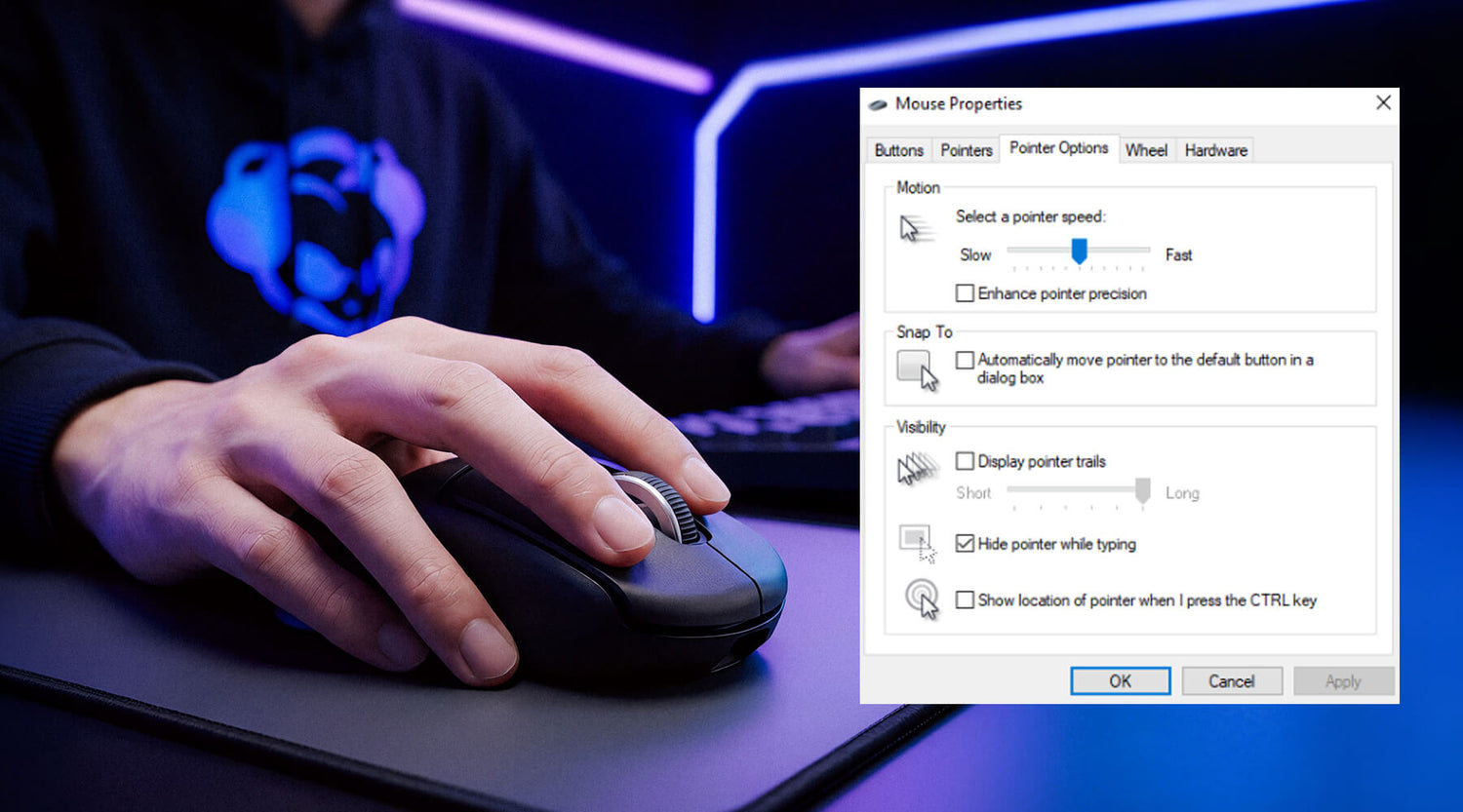
Mouse acceleration is called “Enhance pointer precision” in Windows settings.
For Windows 11 / Windows 10
1. Open Settings
2. Go to Bluetooth & devices → Mouse
3. Click Additional mouse settings
4. Open the Pointer Options tab
5. Uncheck Enhance pointer precision
6. Click Apply → OK

How to Turn Off Mouse Acceleration on Mac?
macOS does not provide a simple built-in toggle for mouse acceleration like Windows does, but you can reduce or disable it using Terminal commands or third-party tools.
Method 1: Basic Adjustment:
- Open System Settings
- Go to Mouse
- Adjust Tracking Speed
Method 2: Use Third-Party Apps
You may need third-party tools to completely remove acceleration behavior.
How to Check If Mouse Acceleration Is Off?
After disabling mouse acceleration, it’s important to confirm that your settings are actually applied correctly. Even small configuration issues can cause your cursor to feel inconsistent.
Here are three simple ways to check:
1. Perform a Consistency Test (Recommended)
The easiest way to verify is by testing how your cursor behaves with identical mouse movements.
How to do it:
- Place your mouse at a fixed starting point
- Move it slowly from left to right
- Repeat the same movement at a faster speed
What to expect:
- Acceleration OFF → Cursor travels the same distance every time
- Acceleration ON → Faster movement results in longer cursor distance
If the distance changes, mouse acceleration is still active.
2. Use an Online Mouse Test Tool
For more accurate results, use an online testing tool to analyze your input behavior.
These tools help you:
- Detect inconsistent cursor movement
- Measure tracking stability
- Identify hidden acceleration effects
Try these tests:
Mouse DPI Test (check sensitivity consistency)
Mouse Polling Rate Test (check responsiveness)
Mouse Movement Test (detect acceleration behavior)
Using these tools gives you a more objective way to confirm whether acceleration is truly disabled.
3. Check In-Game Settings (For Gamers)
Some games apply their own mouse acceleration or smoothing settings, even if your system settings are turned off.
Make sure to:
- Disable “mouse smoothing” or “acceleration” in-game
- Enable “raw input” if available
Otherwise, you may still experience acceleration inside games even after disabling it in your operating system.
4. Watch for Common Signs of Acceleration
If you’re unsure, these symptoms usually indicate mouse acceleration is still active:
- Your aim feels inconsistent
- Small movements are precise, but fast movements overshoot
- You struggle to build muscle memory
- Cursor speed feels unpredictable
Mouse Acceleration vs DPI vs Polling Rate
This is a key distinction. DPI, polling rate, and mouse acceleration are often mixed up, but they’re actually three completely separate and independent aspects of mouse performance.
A simple car analogy can make the differences easier to understand:
- DPI (Dots Per Inch) is like the gear ratio in a car. It determines how far the cursor moves on screen for every inch your hand moves. In other words, it controls sensitivity.
- Polling Rate is like how often the engine reports data to the car’s system. It defines how many times per second the mouse sends its position to your computer, affecting smoothness and perceived responsiveness.
- Mouse Acceleration is like a non-linear gas pedal. It determines whether moving your hand faster changes how far the cursor travels. Instead of a fixed response, it alters the feel and behavior of movement.
| Setting | What It Controls | Impact on Performance | Recommended Setting |
|---|---|---|---|
| Mouse Acceleration | Cursor behavior | Affects consistency | OFF |
| DPI | Cursor speed | Affects sensitivity | Personal preference |
| Polling Rate | Input frequency | Affects responsiveness | 1000Hz |
Related Articles:
What Is Mouse Polling Rate? (125Hz vs 1000Hz vs 8000Hz Explained)
What Is Mouse DPI? A Guide to Precision
How to Set Mouse Acceleration, DPI and Polling Rate?
1. Set the Polling Rate
Set it directly to the max your mouse can support, if you are using Akko gaming mice, generally you can set it to 8000Hz.
A high polling rate reduces latency and improves smoothness, with no downsides (aside from a negligible increase in CPU usage). It offers a pure upgrade for any scenario—whether for office work or gaming.
2. Adjust DPI to Find Your Comfortable "Base Speed"
FPS Games:
Most FPS players typically use a DPI range between 400–1600.
- Low DPI (e.g., 400–800): Often preferred by “arm aimers,” who rely on larger arm movements for broad, controlled aiming.
- Higher DPI (e.g., 1200–1600): More common among “wrist aimers,” who use smaller wrist movements for faster, more compact control.
There is no universal “best” DPI setting. The right choice is simply the one that lets you move your cursor smoothly and reliably onto small targets without strain or hesitation.
Daily Office Work / 4K or High-Resolution Displays
For productivity tasks or high-resolution screens, a higher DPI range of 1600–3200 is often more comfortable.
At lower DPI settings, you may need to move your hand significantly more to cover the same screen distance, which can lead to fatigue over long periods of use.
Core Principle
Choose a DPI that feels natural and stick with it.
Avoid changing DPI frequently, as it disrupts muscle memory. Instead, use in-game sensitivity settings (or software sensitivity) for fine adjustments while keeping your DPI consistent as your “base speed.”
3. Finally, Decide on Mouse Acceleration (Based on Scenario)
- Playing FPS / Competitive Games → Turn Off (Uncheck "Enhance pointer precision" in your Windows mouse settings, and ensure that in-game acceleration is set to 0).
- Daily Office Work / Web Browsing / Photo Editing → Turn On (Keep the default Windows setting checked).
- Playing RTS / MOBA Games → Based on personal preference. You can start with it off; if you find large-range movements become tiring, then turn it on.
With the right combination of settings, you can achieve:
- Low and consistent input latency
- A comfortable and stable base speed (DPI)
- A movement behavior that is either fully predictable or flexibly adaptive, depending on your needs
This setup ensures your mouse feels natural and optimized for your specific usage scenario.
Frequently Asked Questions
Does turning off mouse acceleration improve aim?
Yes. Disabling mouse acceleration provides consistent cursor movement, which improves accuracy and muscle memory.
Is mouse acceleration bad for gaming?
For most competitive games, yes. It introduces inconsistency, making precise aiming more difficult.
What is “Enhance Pointer Precision”?
It’s the Windows feature that enables mouse acceleration. Turning it off disables acceleration.
Why does my mouse feel inconsistent?
Common causes include:
- Mouse acceleration enabled
- Unstable DPI settings
- Low polling rate
- Does Mac have mouse acceleration?
Yes, macOS uses acceleration by default, but it cannot be fully disabled without third-party tools.






Laisser un commentaire
Tous les commentaires sont modérés avant d'être publiés.
Ce site est protégé par hCaptcha, et la Politique de confidentialité et les Conditions de service de hCaptcha s’appliquent.